

You open Google Search Console between two meetings and notice that the indexed total has shifted. The excluded count is larger than expected, a warning category has appeared, and someone is already asking whether organic traffic is about to collapse. The instinct is understandable, but a changed number isn't automatically a site problem.
The Google Search Console Coverage report, now generally presented as the Page Indexing report, is most useful when you treat it as a sampling interface and a historical diagnostic signal. It tells you how Google has processed URLs, then gives you examples to investigate. It doesn't replace your XML sitemap, internal crawl, server logs, GA4 landing-page data, or Search Console performance data.
Table of Contents
- Why Coverage Reports Cause Panic and How to Stay Calm
- What the Coverage Report Actually Counts
- The Four Status Families and What Each One Tells You
- Why Example URLs Are Not the Whole Story
- Reading Coverage Trends the Right Way
- Connecting Coverage to Search Performance and Conversions
- A Repeatable Monthly Workflow and Quick Reference Checklist
Why Coverage Reports Cause Panic and How to Stay Calm
You open Google Search Console between meetings and see fewer valid URLs, a new error group, or a sudden change in excluded pages. Within minutes, the question becomes whether organic traffic is about to collapse. That reaction is understandable, but the chart is a sampling interface, not a complete record of every URL on your site.
The Google Search Console Coverage report, now commonly shown as the Page Indexing report, summarizes how Google has processed URLs and supplies examples for investigation. Treat it like a triage dashboard. Use live signals from Search Console queries and pages, GA4 landing pages, XML sitemaps, internal crawls, and server logs to confirm or challenge what the chart suggests.
Separate the signal from the reaction
Begin with the context:
- Check the date range and property. Confirm that you are viewing the intended domain or URL-prefix property. Make sure the comparison includes the relevant deployment, migration, or content release.
- Identify the affected status. Find the category that changed, note its direction, and review the URL patterns in its examples. A status shift is more useful when you understand which templates or parameters it represents.
- Segment by business value. A product page, lead-generation page, and editorial article need different decisions from a filter URL, duplicate parameter, or expired inventory page.
- Confirm with live sources. Compare the affected group with Search Console queries and pages, GA4 landing-page activity, your XML sitemap, an internal crawl, and server logs. Falling impressions or sessions support the concern. Stable visibility and logs may point to reporting or discovery changes instead.
Google states that the Page Indexing report provides totals, while the interface may display only up to 1,000 example URLs per issue. Therefore, a URL missing from the examples does not prove that it is indexed or healthy (Google's Page Indexing documentation).
Practical rule: Ask whether the right canonical URLs are discoverable, crawlable, indexable, and producing the search or conversion outcomes the business needs.
This approach prevents two errors. You might overlook a template regression because the total indexed count looks stable. Or you might try to force every excluded URL into Google, even when exclusion is intentional and keeps duplicate, filtered, or expired pages out of the index.
What the Coverage Report Actually Counts
A sudden rise in the chart can look like a crawl surge. It is not. Each bar represents the cumulative total of pages Google had indexed or attempted to index by that date, according to Google's documentation on the report. The chart works more like a series of inventory snapshots than a daily activity log. A higher bar may mean Google discovered and processed more URLs over time, not that it crawled that many pages that day.
How the report evolved
Google introduced the Index Coverage report as a beta in August 2017. It showed how many pages Google had indexed, why other URLs were not indexed, example URLs for investigation, and possible fixes. The report also connected indexing diagnostics with sitemap data. Site owners could submit a sitemap and filter the coverage information to URLs listed in it.
In January 2018, Google moved the report into the redesigned Search Console and expanded its historical window to 16 months. That made longer-term and year-over-year comparisons possible. The redesigned version grouped URLs into correctly indexed pages, warnings, and pages excluded from Search. Its issue-tracking features alerted site owners when new problems appeared and helped them check whether fixes had worked. Google's report history and guidance still provide context for interpreting those changes.
Google's current documentation generally uses the name Page Indexing report. The label changed, while the central questions stayed the same: which pages has Google processed, what state did it assign them, and which examples deserve investigation?
NotFair's Search Console platform documentation can support a wider inspection workflow, especially when you connect Search Console data with other marketing systems. It does not replace the report's sampling limits or your own URL inventory.
Why historical comparisons need context
Google replaced the underlying Index Coverage measurement system in 2018 with what it described as a more accurate system. The transition began on July 14, 2018, finished on August 1, 2018, and included estimated values for the affected period because coverage data could not be recorded normally during the change. A chart shift near those dates may reflect revised measurement rather than a site change.
On November 26, 2018, Google began using mobile-first indexing data for properties that had migrated to that initiative. Google stated that the diagnostic basis changed, while indexed-page counts did not. These milestones can explain apparent breaks when older chart data is compared with current reporting.
Use this mental model:
- Totals describe Google's processed URL population.
- Bars are cumulative snapshots, not daily crawl counts.
- Status groups show Google's latest classification.
- Examples are starting points for checks, not a complete URL inventory.
- Sitemaps let you compare important URLs you submitted with Google's observed processing.
- Live signals provide the practical check. Search Console queries, GA4 landing pages, and server logs can confirm whether a reported change affects visibility, visits, or crawling in practice.
The Four Status Families and What Each One Tells You
The report's status groups answer different questions, so don't treat them as one universal health score. A valid page may be exactly what you want. An excluded page may be correctly excluded. An error may affect an unimportant URL or a high-value landing page. The URL's role determines the response.
Valid pages
A valid URL is indexed in the state Google has processed. For a canonical product page, core service page, or important article, this is usually the expected outcome. But valid doesn't mean the page ranks well, receives clicks, or converts. It only tells you that the page is present in Google's processed index state.
Use the Performance report to check whether the URL receives impressions and clicks for relevant queries. Use GA4 to see whether organic search lands users on the page and whether those sessions continue into meaningful actions. A page can be valid and still have weak titles, poor query alignment, thin content, or a technical rendering problem that limits its practical value.
Valid with warnings
A warning means Google has indexed the page but has identified a condition worth reviewing. The page may still appear in Search, yet a signal such as canonicalization, mobile rendering, or another page-level issue may not match your intent.
Start by asking whether the warning affects the preferred URL or an alternate version. For example, a category page may be indexed while Google selects a different canonical than the one your team expects. Don't fix the warning by reflex. Inspect the page source, canonical signals, internal links, sitemap inclusion, and Search Console's processed URL details before changing templates.
Errors
An error indicates that Google couldn't index the affected URL in the processed state. Common causes include an inaccessible response, an unintended noindex, a robots restriction, a broken redirect path, a soft 404 interpretation, or a rendering failure that prevents Google from receiving useful indexable content.
The first hypothesis should be proportional to the URL pattern. If errors appear across a shared template, investigate the deployment and server response before inspecting pages individually. If one URL fails while nearby URLs work, inspect its response, canonical, content, and internal links directly.
Google's technical guidance describes general eligibility conditions such as an unblocked Googlebot, an HTTP 200 response, and indexable content, while also making clear that meeting those conditions doesn't guarantee inclusion (Google's technical requirements). Eligibility is a prerequisite, not a promise.
Excluded pages
Excluded means Google hasn't included the URL in the index, often for a reason that may be intentional. Examples include duplicate or alternate URLs, pages with a noindex directive, redirects, canonicalized variants, thin filters, expired inventory, or pages Google considers unsuitable for inclusion.
An excluded status becomes a problem when it applies to a URL your organization expects users to find through Search. A product URL excluded because Google selected its category page as canonical may be correct. A lead-generation page excluded after a template release is not.
Use a decision tree:
- Is this URL strategically important? If not, exclusion may be appropriate.
- Is the exclusion intentional? Check
noindex, canonical, redirect, robots, and sitemap signals. - Does the URL pattern affect many important pages? Investigate the shared template or deployment.
- Did search outcomes change? Compare affected pages with impressions, clicks, organic sessions, and conversions.
- Does Google know about the URL at all? Check internal links, sitemaps, referring URLs, and logs.
A rising excluded total isn't automatically bad, just as a rising valid total isn't automatically a coverage win. Google may be discovering more duplicate or low-value variants. The true objective is a controlled URL set, not maximum inclusion.
Why Example URLs Are Not the Whole Story
A large ecommerce site can contain URLs for colour filters, size combinations, sorting parameters, pagination, product variants, and regional paths. A publisher may also have archive pages, tag pages, syndicated copies, and JavaScript-generated routes. The Coverage report samples this much larger URL universe. Google describes its totals as complete, while an issue may show only up to 1,000 example URLs (Google's Page Indexing report guidance). Those examples reveal patterns to investigate, not every affected URL.
The CMS may report thousands of URLs, while Google knows a smaller or different set. Discovery depends on links, sitemaps, references, and crawling. That difference is why a report status should be treated as a starting signal, then checked against live evidence.
Reconcile the report with your own URL universe
Use this workflow before applying a broad fix:
- Record the issue examples. Group them by path, template, parameter, language, product type, or publication state. A shared pattern often matters more than any individual URL.
- Compare them with XML sitemaps. Sitemaps should represent URLs you want Google to discover and consider. If important canonical pages are absent, the problem may begin with URL governance rather than indexing.
- Crawl internal links. A crawler such as Screaming Frog, Sitebulb, or an equivalent tool can identify orphaned URLs, blocked paths, canonical mismatches, and recurring status codes.
- Inspect representative URLs. Choose important pages, excluded examples, and URLs missing from the sample. Compare canonical, robots, sitemap, last crawl, referring URLs, and indexing status.
- Check live search signals. Search Console queries can show whether affected pages still receive impressions and clicks. GA4 landing pages can show whether organic sessions and conversions continue. Server logs can confirm whether Googlebot requests the affected patterns, receives failures, or spends time on unwanted variants.
A URL missing from the examples may still be indexed, excluded, or unaffected. An example URL does not prove that every URL with a similar path has the same state. Test the pattern across your actual URL population, using the report as a sample rather than a source of truth.
A coverage report can show that a category exists. Sitemaps, crawls, inspection data, Search Console queries, GA4 landing pages, and logs help determine what that category contains.
This method matters for international sites, JavaScript applications, faceted navigation, and large publishing platforms. The URL count in a CMS is not automatically the same as Google's known-URL universe.
Reading Coverage Trends the Right Way
A chart movement becomes useful only after you attach it to a timeline. Mark the dates of releases, template changes, migrations, sitemap edits, robots changes, canonical updates, content launches, and major server incidents. Then ask whether the affected status group changed in the same URL patterns as the technical event.
Because the bars are cumulative snapshots, don't read a rise as daily crawl volume or a fall as a direct traffic loss. Compare the trend with the URLs in the group, the date Google processed them, and the site's own evidence.
Use three comparison layers
First, compare the report with deployment history. A sudden group of errors after a template release points toward a shared implementation. A gradual increase in excluded filter URLs after navigation expansion may reflect discovery rather than damage. A change near a Google reporting milestone requires extra caution because the measurement basis may have changed.
Second, compare with Search Console Performance. Filter the Performance report by affected page paths where possible, then compare impressions, clicks, queries, and average position over the same period. If Page Indexing shows fewer valid pages but the affected pages retain impressions and clicks, the chart may not represent a material loss for those URLs. If visibility falls for a high-value page set at the same time, prioritize investigation.
Third, compare the indexed state with the live state. URL Inspection's indexed version reflects Google's processed information and updates when Google crawls and indexes the page. The Live Test runs on demand and is useful for troubleshooting, but it doesn't guarantee that the next crawl will produce the same result (Google's URL Inspection guidance).
Avoid the live-test trap
A page can pass a Live Test while remaining absent from the current index because Google hasn't recrawled it or because other signals affect inclusion after the test. The reverse can also happen. The indexed result may reflect an earlier crawl and therefore not show a recently deployed robots rule, canonical, status-code change, or noindex.
For every important discrepancy, record:
- The URL and inspection timestamp.
- The indexed version's last crawl information.
- The Live Test result.
- Robots and indexing directives.
- The declared and Google-selected canonical.
- Sitemap membership and referring URLs.
- The relevant deployment or server event.
Don't automate a write action, such as changing canonical tags or removing a noindex, just because a Live Test looks clean. Confirm the intended state and understand whether Google has processed the change.
Connecting Coverage to Search Performance and Conversions
Coverage matters because indexed pages can support visibility, traffic, leads, and sales. The practical analysis joins three views: the affected URL group from Page Indexing, the queries and clicks associated with those pages in Search Console, and the landing-page behavior recorded in GA4.
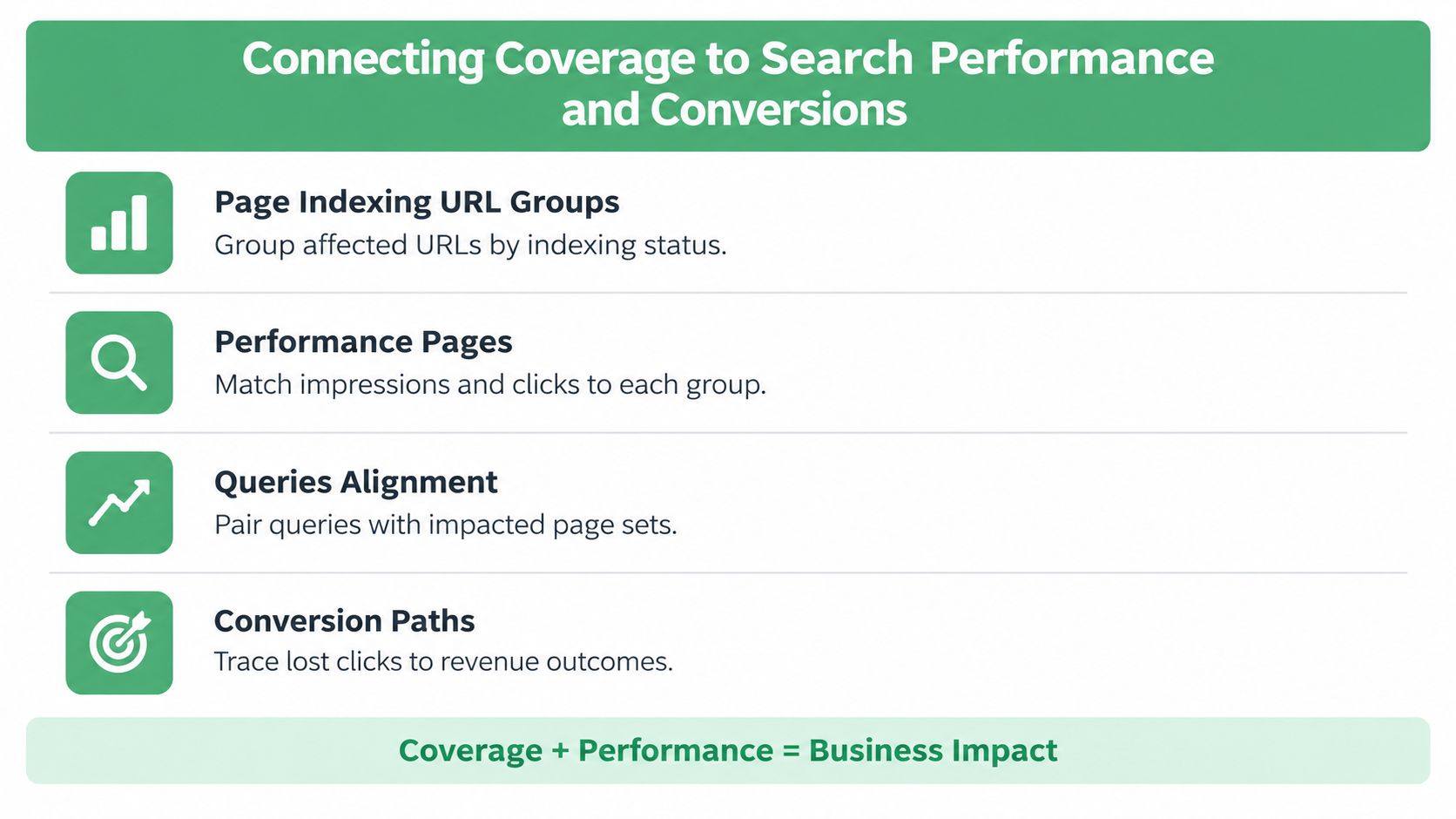
Start with page value. A blocked product template deserves faster attention than an excluded sort parameter. A canonical mismatch on a lead-generation page matters more than a warning on an obsolete archive. Use organic clicks and impressions to estimate search exposure, then use GA4 landing pages and conversion paths to understand business impact.
Coverage issue triage at a glance
| Status | Common Cause | First Diagnostic Move |
|---|---|---|
| Error | Response failure, unintended noindex, robots restriction, soft 404, or rendering problem |
Inspect the affected URL, HTTP response, directives, rendered content, and shared template |
| Valid with warnings | Canonical mismatch or another signal that doesn't match the intended page state | Compare declared and Google-selected canonicals, sitemap inclusion, internal links, and Performance data |
| Excluded | Duplicate, redirect, intentional noindex, thin filter, expired page, or alternate URL |
Decide whether exclusion is intentional, then inspect representative URLs and their canonical relationships |
| Valid | Page is in Google's processed index state | Check impressions, clicks, queries, landing-page sessions, and conversions rather than stopping at the status |
A useful diagnostic sequence is to align the affected URL set with Search Console's Pages and Queries views, then compare organic landing pages in GA4. A page with no current clicks may still be strategically important, while a page with strong organic sessions and conversions should move to the front of the queue.
For a broader walkthrough of combining Search Console data with SEO decisions, mastering Search Console for SEO provides useful additional context. Teams that want to query coverage and analytics data through an AI-assisted workflow can also review the NotFair Google Search Console integration, which is one option for retrieving inspection and reporting data.
Prioritize in this order:
- Revenue and strategic value. Protect pages that support sales, leads, core categories, or critical editorial coverage.
- Traffic exposure. Use impressions, clicks, queries, and affected landing pages to estimate the search visibility at risk.
- Pattern size. A shared template issue can affect many URLs and deserves engineering attention even when individual examples look ordinary.
- Low-value cleanup. Handle duplicate filters, expired pages, and unnecessary variants after important URLs are safe.
A Repeatable Monthly Workflow and Quick Reference Checklist
A manageable monthly routine keeps the report from becoming an emergency dashboard.
- Review totals and status movement. Confirm the property, date range, and affected categories.
- Sample intelligently. Group example URLs by template and compare them with sitemaps and an internal crawl.
- Cross-check outcomes. Match affected pages with Search Console impressions, clicks, queries, GA4 organic landing pages, and conversions.
- Validate fixes. Use URL Inspection, logs, and deployment records. Distinguish the indexed version from the on-demand Live Test before changing production signals.
Before you leave the report, confirm:
- The property and report type are correct.
- Date ranges align across Search Console and GA4.
- Recent releases and sitemap changes are documented.
- Important canonical URLs are represented in the intended sitemap.
- Representative URLs have been inspected.
- The next review date and expected recrawl window are recorded.
For teams that want to connect Search Console investigations with AI-assisted data workflows, NotFair's Google Search Console MCP documentation describes an approach for retrieving coverage and inspection information while keeping diagnosis separate from approved changes.
NotFair connects AI clients with Google Search Console and GA4 so teams can inspect coverage states, crawl details, canonicals, queries, traffic, and conversions in a joined workflow. Visit NotFair to explore a practical way to turn coverage signals into documented, reviewable SEO actions.