

You've spent the morning refreshing two tabs. GA4 shows 34 leads since Monday, 12 of them from paid search. Google Ads shows zero conversions for the same window, and the bid strategy has started behaving like a campaign with no conversion signal at all. Nothing obvious changed between the day the numbers lined up and the morning they didn't.
That is the usual shape of GA4 conversions not showing in Google Ads, and it's rarely a tag that broke overnight. Analytics has become the default measurement layer for many teams, and the numbers bear it out: in a 2024 survey of more than 100 companies, Databox reported that 94.29% were using Google Analytics 4 to track user interactions and website performance. When one system is the house record, any gap against Ads reads as a tracking failure, even when the cause is a definition.
Sort the case before you open Tag Manager. Three conditions have to hold before a number can appear in the Ads interface: the event is eligible for import, the import has propagated, and the conversion is attributable to an ad interaction. When one of those fails, retagging the site changes nothing.
Table of Contents
- Find Where the Conversion Chain Breaks
- Rule Out Reporting Delay Before You Debug
- How to Link GA4 and Google Ads for Import
- Fix Tag, Consent and Attribution Gaps
- Recover Historical Gaps Without Forcing Imports
- Confirm the Fix and Handle Stubborn Mismatches
Find Where the Conversion Chain Breaks
The mismatch looks identical from the outside regardless of which link is broken. GA4 shows leads or purchases, Google Ads shows zero or a fraction of them. Treat it as a sorting problem first. Some gap is expected by design, because GA4 counts events on your site while Ads imports only events marked as key events, and only those it can tie to a Google Ads campaign. Direct, organic and other paid-channel conversions never become Ads conversion records, so a perfect match isn't the goal.
| Check | Where to look | Pass when | Failure means |
|---|---|---|---|
| Key event flag | GA4 Admin, Events | Event is toggled as a key event | Ordinary event never imports |
| Property link | GA4 Admin, Product links, Google Ads links | Correct property linked to the correct Ads account | Wrong or missing link sends nothing |
| Permissions | Google Ads Admin and GA4 Editor roles | Both roles held by the user | Import option missing or failing |
| Auto-tagging | Google Ads account settings | Auto-tagging enabled | Clicks lack click ID, so attribution breaks |
| Import status | Goals, Conversions, Summary | Key event listed as imported | Not imported yet or never created |
| Traffic source | GA4 acquisition report | Conversions come from Google Ads campaigns | Direct, organic or other paid conversions never reach Ads |
Two rows explain most real cases. A property link pointing at the wrong Analytics property sends nothing at all, and it stays silent for weeks because GA4 keeps reporting happily on the other property. A traffic source row that shows the conversion arriving from direct or organic is not a tracking bug; those conversions were never candidates for import.
Google's own documentation covers the second half of the sorting job. The Analytics help page on modeled key events explains that GA4 can model key events when direct observation is limited by consent choices, privacy requirements, technical restrictions or cross-device behavior, and that Google Ads conversions built from GA4 key events can include that modeled data. GA4 can therefore show an estimated contribution for a user whose advertising signal never reached Ads. That's measurement policy, not a missing tag.
Sorting rule: every missing conversion belongs to exactly one bucket, eligibility, delay or attribution. Decide which bucket before you touch a setting.
Say a B2B team builds a demo-request form that fires a clean generate_lead event on submit. It appears in GA4 reports daily for months, so everyone assumes it's tracked. Nobody toggles it as a key event, so the import list stays empty for a quarter while the account bids on a conversion that doesn't exist in Ads. Write down which check failed before you change anything; that note is what stops the next person from rebuilding working tracking. If the chain needs a wider rebuild than one account, Revenue Nomad's guide to RevOps consulting is a reasonable map of who owns which piece of the measurement stack and when to bring help in. You can also run the same six checks in order as a Google Ads conversion audit and keep the evidence for each one.
Rule Out Reporting Delay Before You Debug
The most common false alarm is a conversion that exists but hasn't been reported yet. Google documents each delay separately, and they stack. After GA4 data is imported, conversion data can take up to 24 hours to become available in Ads. A normal reporting update runs 3 to 24 hours. The import option itself can take 24 to 48 hours to propagate after you link accounts or mark an event as a key event. And significant account changes or account linking can require up to 7 days before conversion data fully appears in reports, as set out in Google's discrepancy guidance.
| Delay type | Typical window | What to do |
|---|---|---|
| Normal reporting update | 3 to 24 hours | Wait, no action needed |
| Imported conversion data | Up to 24 hours after import | Recheck the next day |
| Import option propagation | 24 to 48 hours after linking or a key-event change | Do not diagnose yet |
| Significant account changes or linking | Up to 7 days | Log the change date and wait |
| New conversion action | Under 48 hours since creation, shown as awaiting conversions | Expected status, not an error |
| Analytics to Ads synchronization | 24 to 48 hours | Compare on the same completed date range |
The second reason a fresh conversion looks missing is a date mismatch. Google Ads reports conversions on ad-interaction timing, so a conversion can be booked against the date of the click or impression, while GA4 records the date the event happened. A shopper clicks a Monday ad and buys Tuesday morning. Ads files that conversion under Monday. If you check Tuesday at 9 a.m., Tuesday looks empty and Monday looks better than it did yesterday, and neither reading is an error.
Practical rule: don't call a missing import a failure until 24 hours have passed, and 48 hours after any account link or key-event change. After a major account change, give it the full 7 days.
Keep a small log while you wait: the date you generated the test conversion, the date of every change you made, and the current status shown on the conversion action. That log is what turns a vague "it's not working" into a case you can escalate, and it stops you from restarting the clock with a pointless edit every morning.
How to Link GA4 and Google Ads for Import
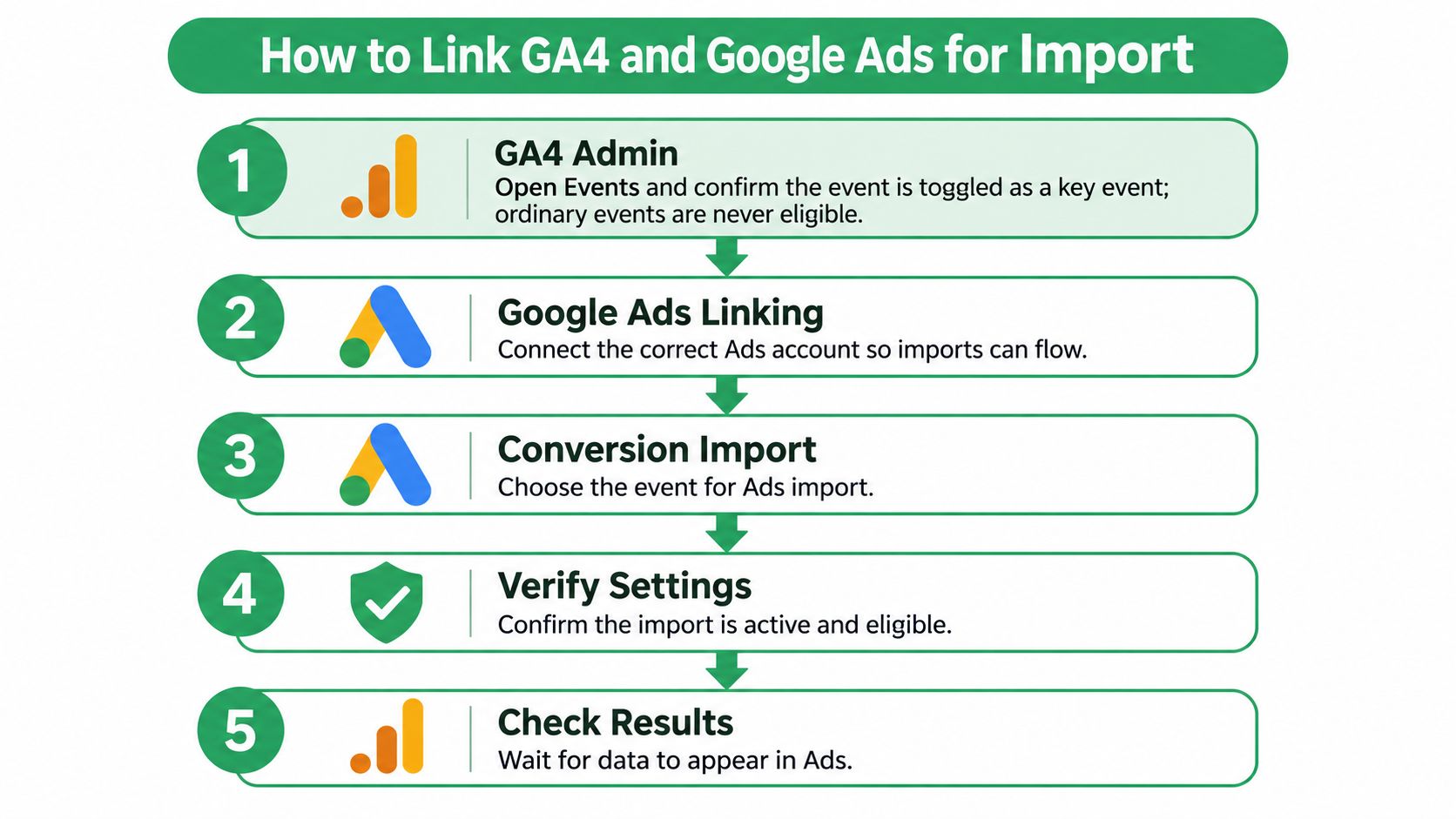
Each stage of the import depends on the one before it, so run the sequence in order. The seven steps below start with access rights and end with a status check you can read the same day.
Check permissions first. You need Google Ads Admin and GA4 Editor roles on the same login. The link fails without both, and the usual symptom is an import option that never appears in the interface.
Confirm the key-event flag. In GA4 Admin, open Events and check that the event is toggled as a key event. An ordinary event is never eligible for import, no matter how cleanly it fires, so this single toggle decides whether the rest of the chain can work.
Link the right property. In GA4 Admin, open Product links, then Google Ads links, and connect the property that receives the campaign traffic to the correct Ads account. The most common slip is linking a staging or secondary property, which leaves the import empty for weeks while the live property keeps collecting key events nobody sees.
Turn on auto-tagging. In Google Ads, go to Admin, then Account settings, and confirm auto-tagging is enabled. Without the click identifier Ads appends to landing page URLs, there is nothing to tie a conversion back to a click.
Import the key events. In Google Ads, open Goals, then Conversions, then Summary, create a new conversion action, pick Import, then Google Analytics 4 properties, and select the key events you need. Google's import guide for Analytics conversions lists the same path and notes that only key-event data attributable to Google Ads campaigns comes across.
Set counting and primary status deliberately. Choose one conversion per click for lead forms and every conversion for purchases, then mark the action Primary only if bidding should optimize toward it. A Secondary action still records data but lands in the All conversions column and is ignored by Smart Bidding.
Confirm the action exists and is enabled. Back in the Summary list, find the imported action and check it shows as enabled rather than paused or removed, and that its goal category matches what you want reported. An action disabled during setup records nothing, and one filed under the wrong category can look absent in filtered views.
The reliable test is one controlled conversion from a tagged click on a live ad, then a three-way comparison: GA4 Realtime or DebugView, the GA4 key-event report, and the Ads conversion action status. If the event shows in the first two and not the third, the fault sits in steps 3 to 5, in linking and import rather than in your tag.
Fix Tag, Consent and Attribution Gaps
Only start here once eligibility is confirmed. Attribution and consent signals explain a large share of gaps, and Google's guidance on reconciling Ads and Analytics conversions recommends comparing attribution and conversion-window settings before changing any tag. Two reports crediting different touchpoints under different windows will never agree. That gap gets closed in settings, well before anyone touches a tag.
The checks below run from cheapest to most technical. In practice, the second one resolves most of these mismatches.
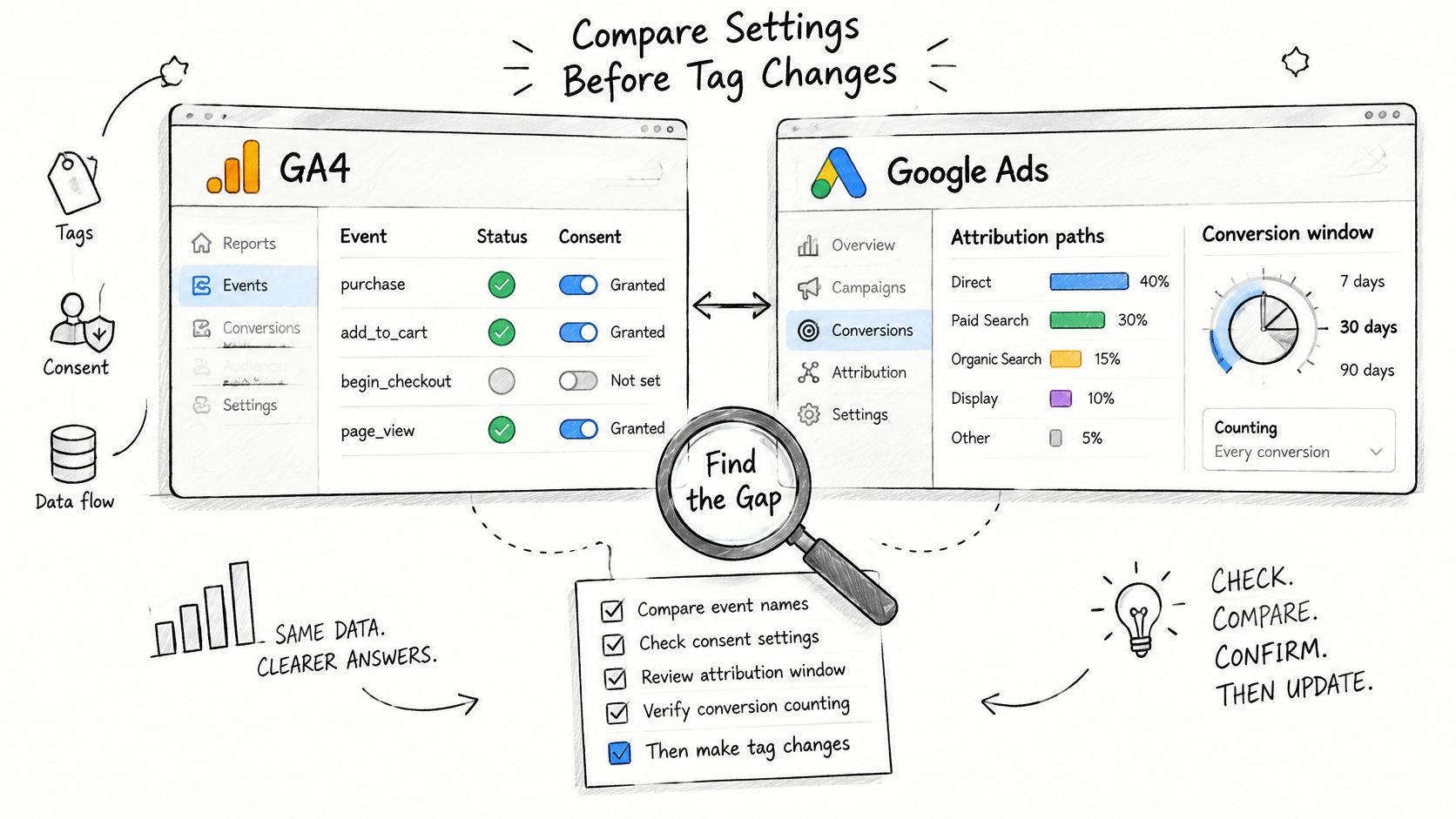
Compare windows and models first. Line up the click-through window and the attribution model in both platforms, then look at the GA4 last-click report alongside the Ads number. If the gap shrinks to near zero, you've found your cause and no code needs to change.
Follow the click identifier through the funnel. Open the landing page with Tag Assistant or browser developer tools and confirm the Google tag loads and the click identifier survives redirects and checkout. A payment provider redirect that strips it sends the sale to direct traffic, which is one of the most common reasons a purchase shows in GA4 and never in Ads.
Confirm the event fires once, with the exact name. Duplicate dispatch inflates GA4 totals and makes the Ads figure look small by comparison. Cross-domain breaks and blocked tags have the opposite effect, suppressing the Ads-linked attribution while GA4 still records something.
Verify consent fires before the tags. Consent defaults and updates must run before the Google tags on every page, including thank-you pages that load through a different template. Gaps in page coverage leave holes that modeling can't fill.
Check which tag technology you're on. Imported Analytics conversions support modeling only where the implementation uses consent-mode-compatible gtag.js or Google Tag Manager. Older analytics.js setups don't supply reliable consent state, so the modeling does not apply to them.
Check whether the account qualifies for modeling at all. Modeling carries its own eligibility conditions: the property needs enough ad-click volume within a short window and several full days of consent-mode implementation before modeled results appear. A small or recently migrated account that falls short should read missing modeled conversions as an eligibility limit, and put the effort into the checks above instead.
The video below walks through the same comparison from the interface side, which helps when you want to see where each setting lives before you change it.
Teams that want GA4 traffic and conversion reporting next to their Ads data in one session can use the Google Analytics connector for NotFair, which covers GA4 traffic and conversions alongside the ad-platform connectors.
Recover Historical Gaps Without Forcing Imports
The instinct after finding a gap is to backfill it. Resist that. Conversions recorded before the import existed generally don't appear in Google Ads, and hours spent trying to force them in produce nothing except a longer delay on the fix you need. By this point the gap has a cause: an eligibility limit, a reporting delay, or an attribution break. None of those can be repaired retroactively.
What you can do is document the gap properly and stop it from distorting your reporting.
Date-stamp the gap. Record the first and last day of the mismatch in your reporting notes, with the settings that were in place during that window. When someone asks six months from now why October looks different from November, this note is the answer.
Report GA4 totals with a caveat. For that window, use GA4 numbers and label them clearly as unattributed to Ads. A number with a note is more useful than a number someone later corrected.
Split the timeline at Consent Mode. Compare the period before consent handling went live against the period after. Cookieless pings carry no attribution data and depend on modeling to be assigned to any channel at all, as Google's Analytics guidance on consent and modeling sets out. The question that decides a specific conversion's fate is which implementation, consent state and conversion path apply to it.
Treat a structural gap as a build problem. If a large share of conversions is consistently unattributable across several weeks, server-side tagging is the usual next step. It moves event collection onto infrastructure you control, so the data reaching Ads and GA4 stops depending on what a browser chooses to send.
Reconcile monthly, not reactively. Put the GA4 and Ads comparison on a monthly calendar and keep the note with the dates of each fix. Reconciling only when someone notices a problem is how gaps get discovered three months late.
A realistic goal for the historical window is an honest record of what was measurable, plus a change log that explains why the later period looks different.
Confirm the Fix and Handle Stubborn Mismatches
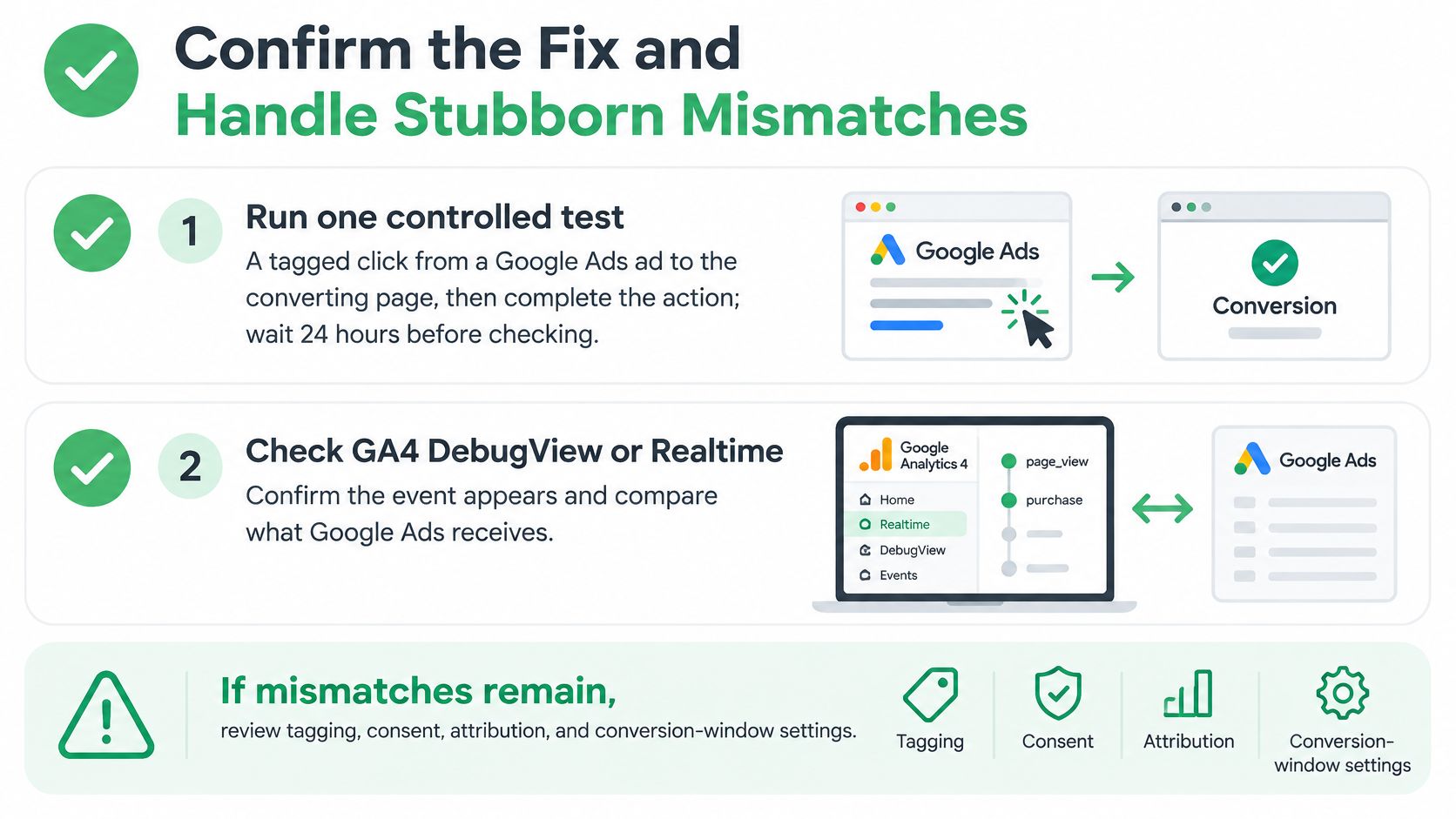
The only test that settles the question is a controlled one. Run it once, log it, and resist the urge to repeat it every few hours.
Create one clean test conversion. Click a live ad from a search campaign, land on the converting page, and complete the action as a real visitor would.
Check GA4 within the hour. Look in DebugView or Realtime for the event and confirm the name and parameters are what you expect. This tells you the tag fired and says nothing yet about whether Ads received it.
Compare three data points at the 24 hour mark. GA4 DebugView or the key-event report, the Ads conversion action status, and the imported conversion count. Those three tell you which link in the chain is still open.
The decision rule is simple. If all three show the conversion, mark the issue fixed and monitor for a week. If GA4 shows it and Ads still doesn't after 48 hours, recheck the property link, the key-event flag and the import settings. If neither shows it, go back to the tag and consent checks. Escalate to Google support only with the test log, the dates and screenshots of each screen.
Stubborn mismatch habit: change one setting per day. Each edit restarts the propagation clock, so a morning of enthusiastic fixes leaves you unable to tell which change worked.
Before comparing any two numbers, match the date range, the attribution model and the conversion window. Compare Ads campaign conversions against GA4 key events from the Google Ads source only, never against total site key events. Realtime is a smoke test, not a report.
Say a SaaS team sees 40 GA4 key events against 12 Ads conversions for the same week. The gap turns out to be a 7-day view-through window on one side and two lead forms re-firing on a thank-you page refresh on the other. Aligning the windows and fixing the duplicate fire closes most of it, and the remainder is consent modeling. That's a normal outcome, and it's a much better use of a day than rebuilding a tag that was working.
Once conversions are flowing, the next question is what the numbers are worth. Yalc's guide to sales forecast accuracy covers how to turn a stable conversion signal into a forecast you can defend. The Google Ads connector documentation shows how to pull the same conversion data into an AI client so the reconciliation runs against live account reads instead of a stale export.
NotFair connects Google Ads, GA4 and your CRM to an AI client through hosted MCP servers, so you can ask which conversion actions are imported, which key events never made it, and where the gap sits, all against live account data rather than a spreadsheet from last month. Connecting Google Ads takes two minutes: you authorize once at NotFair, then ask your questions in Claude, Codex or Cursor. Reads are read-only until you approve a change, so diagnosing a missing conversion never puts working tracking at risk.