

Your form tag fires in Google Tag Manager, the thank-you page loads, and GA4 shows activity. Yet Google Ads reports no conversions, or reports more leads than your CRM contains. You're left deciding whether to trust the campaign, the tracking, or neither.
A reliable GA4 conversion setup needs more than a working tag. The key-event flag, counting method, and Google Ads import each need a separate pass condition before you let bidding use the result.
Table of Contents
- The Seven Stages of GA4 Conversion Setup
- Plan Events and Parameters Before You Tag
- How to Send the Conversion Event with GTM or gtag
- Mark Key Events and Set Counting Rules
- Test Every Conversion Before It Reaches Google Ads
- Import to Google Ads and Fix Mismatched Counts
- Confirm Your Conversion Counts Before Changing Bids
The Seven Stages of GA4 Conversion Setup
Treat setup as an order of operations, not a collection of switches. In GA4, the important business action is a key event. Google Ads can then use a conversion based on that event, but firing the website tag doesn't complete either configuration.
Use this checklist as a release gate. Each stage is finished only when someone can demonstrate that its done-when condition is true.
| Stage | Action | Where | Done when |
|---|---|---|---|
| 1. Define outcomes | List each business outcome and give it one event name | Measurement plan document | Each outcome has one canonical event name |
| 2. Send the event | Fire the event from GTM or gtag on the success condition | Tag Manager or site code | One conversion-event send per completed action |
| 3. Check the event | Trigger it and inspect name and parameters | DebugView and Realtime | Event shows with expected value and currency, where applicable |
| 4. Mark key event | Turn the event into a key event | Admin > Data display > Key events | Event is listed as a key event |
| 5. Set counting | Choose once per event or once per session | Key event settings | Counting matches the business goal |
| 6. Import to Google Ads | Link the property and import matching key events | Google Ads conversion goals | The intended imported conversion action is available |
| 7. Reconcile | Compare GA4 counts with CRM leads or orders | Your backend report | Gaps are explained by a cause, not guessed |
Don't skip ahead because a tag says “Fired.” That confirms the trigger executed, not that GA4 received the correct payload, classified it correctly, or made the intended action available to Google Ads.
Release rule: A screenshot of a fired tag isn't evidence that a conversion is ready for bidding.
The purchase event has automatic key-event classification for web and app properties. Most manual classification work therefore concerns outcomes such as lead submissions, account registrations, and booked demos.
Use the checklist as a handoff
Assign an owner to each stage. Developers should confirm the success signal and payload; marketing operations should confirm classification and counting; the paid media manager should approve the bidding goal.
Run the checklist in a staging environment with a separate test property where possible. Repeat it on production before any bid strategy relies on the conversion, because production consent settings, checkout routes, and published containers can differ from staging.
Plan Events and Parameters Before You Tag
A naming mismatch can break measurement without breaking the website. If the tag sends lead but the configured key event is generate_lead, GA4 receives an event that doesn't match the outcome you intended to classify.
Google's GA4 key-event guidance describes an event-based model: implement or identify the interaction, then designate the important event as a key event. Unlike Universal Analytics, goals and ecommerce outcomes don't require separate measurement models.
Write the naming decisions before opening GTM.
| Business outcome | Event name | Parameters | Trigger |
|---|---|---|---|
| Online purchase | purchase |
transaction_id, value, currency, items |
Order confirmation after payment succeeds |
| Lead form submit | generate_lead |
value, currency |
Confirmation after a successful form submission |
| Account signup | sign_up |
method |
Confirmation after the account is created |
| Demo booked | generate_lead or custom book_demo |
value, currency |
Booking confirmation |
| Click to call | Custom click_to_call |
link_url, link_text, placement |
Click on a tracked phone link |
For each row, document the canonical event name, success trigger, required parameters, value model, and destination system. Add the person responsible for maintaining it. A shared sheet is more useful than a naming convention that exists only inside a developer's implementation ticket.
Use the plan to settle these decisions before implementation.

Decide what the payload means
For purchases, transaction_id must identify the order, not the page visit. Reusing the order identifier supports purchase deduplication when confirmation pages reload; it doesn't excuse leaving duplicate triggers in place. Send transaction value and currency for monetary reporting, and items for product-level detail.
For leads, send a numeric value and an ISO currency code. Base the valuation on a defensible model, such as expected revenue from leads at the relevant pipeline stage. Don't type an arbitrary amount into every tag to make value-based bidding available.
Use recommended event names where they fit. If a demo and a general enquiry have different business meanings, a distinct book_demo event can make campaign goals clearer than combining both under an undifferentiated lead event.
Keep intent separate from completion
A phone-link click records an attempt to call, not an answered or qualified call. Keep it distinct from call outcomes imported through a call-tracking system. Similarly, a booking-page visit isn't a booked demo.
Keep the website event, CRM mapping, and GA4 configuration aligned, even if the CRM uses a different display label. The Google Analytics integration documentation can help when mapping the reporting and configuration workflow.
Have marketing and development sign off on the shared sheet. Freeze the names before tagging starts, and treat later changes as measurement changes rather than harmless label edits.
How to Send the Conversion Event with GTM or gtag
Choose GTM or direct gtag implementation as the owner of the send. Installing both approaches for the same outcome without a deliberate routing design makes duplicate collection harder to diagnose.
The implementation flow starts with a confirmed business action, not a convenient browser interaction.
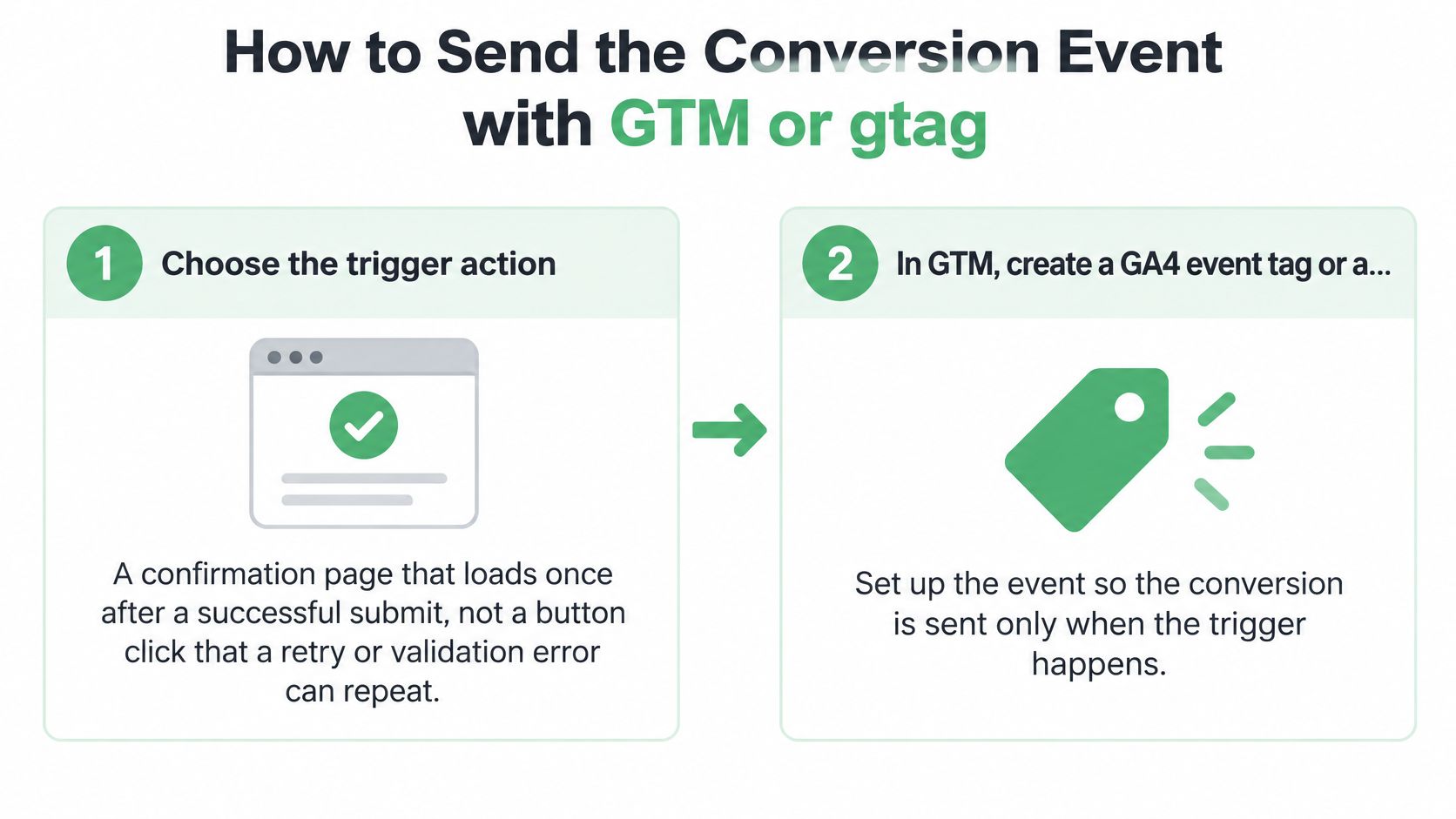
Build around the success signal
Choose the trigger action. Use the application's successful submission or payment response, ideally followed by a confirmation state. A button click can happen before validation fails, so it's a poor substitute for a completed action.
Create the GTM event tag. Configure a GA4 event tag with the planned name and map its parameters to variables containing the confirmed outcome's values. When developers expose a custom
dataLayerevent, use that signal to trigger the tag; a data-layer push alone doesn't send anything to GA4.Restrict the trigger. Match the confirmation route precisely or use the custom success event instead of a broad page-view rule. Separate internal and preview traffic through a deliberate testing and filtering policy, while keeping a test destination available for QA.
For direct gtag, send only after success. Call
gtag('event', 'generate_lead', ...)from the successful submission handler, with numericvalueand an appropriatecurrency. Don't place that call on the form's initial page load, because opening the form doesn't create a lead.Guard against repeated sends. Tie the dispatch logic to a stable order or lead identifier, and record whether that completed outcome has already been sent. Test refreshes, application route changes, payment retries, and browser/server overlap; an arbitrary lead ID parameter doesn't automatically deduplicate GA4 events.
Preview, publish, and inspect delivery. Confirm the intended tag in Tag Assistant, then inspect the outgoing event payload in the browser network panel. After publishing, repeat the action outside preview mode so you're testing the live container rather than an unpublished workspace.
Choose page-based tracking deliberately
Google's conversion implementation guide documents a confirmation-page approach that creates generate_lead from page_view, adds value and currency, and marks the event as a key event before its first hit arrives. That's useful when the confirmation route reliably represents success and you can prevent repeat qualification.
The trade-off is control. A page-derived event is quick to configure, but a dedicated application success event is usually easier to distinguish from direct visits, reloads, and unrelated navigation. Don't create the page-derived version and send the same event through GTM unless you've explicitly prevented overlap.
Prefer a success signal from the application over a guess based on what the visitor clicked.
For a visual walkthrough of the tagging workflow, use the video alongside your own payload inspection.
Watch for values formatted as display text, such as an amount containing a currency symbol or thousands separator. Send the numeric amount separately from the currency code, and inspect what GA4 receives rather than trusting the variable's name.
The implementation passes when the confirmed action produces the intended event payload without another send on retry or navigation. A thank-you URL that fires again on reload, or a callback that runs before server validation, fails that condition even if the original test looks correct.
Mark Key Events and Set Counting Rules
Open Admin > Data display > Key events to configure the important event. Google renamed GA4 conversions to key events, so older instructions may describe the same classification using conversion terminology. If your interface groups the controls under Events, look for the Key events tab or search Admin for Key events.
Select the exact event name and enable its key-event classification. Newly collected events may not appear immediately in the event list; predefining the planned key-event name avoids depending on that first appearance. Check the spelling against the implementation, not against someone's recollection of it.
Choose the counting unit
Once per event counts each occurrence. Once per session counts the key event once within a session, even if that same action repeats.
| Conversion | Counting method | Value source | Reason |
|---|---|---|---|
| Purchase | Once per event | Transaction value from the event | Each order is a separate sale |
| Lead form submit | Once per session | Assigned lead value | Repeat submits in a visit count once |
| Account signup | Once per event | Defensible flat value or no assigned value | Each new account is a separate outcome |
| Demo booked | Once per session | Pipeline-based value | Reschedules in a visit count once |
| Newsletter signup | Once per session | No assigned value unless justified | Keep a low-intent signup out of sales bidding |
These are starting decisions, not universal settings. A supplier enquiry form might legitimately create separate opportunities during the same session. In that case, session-based counting would hide valid outcomes.
Conversely, repeated submissions of the same contact request shouldn't imply additional demand. Choose the unit your backend can defend, and document the trade-off.
Counting isn't deduplication: Session-based counting can suppress repeated key-event counts, but it doesn't repair duplicate event collection.
Set values without manufacturing revenue
Use a default key-event value only when the event lacks its own value and the fallback has a business justification. An estimated lead value isn't booked revenue, so label it accordingly in reporting.
Be selective about classification. Marking generic page_view or engagement events as key events can make activity look like commercial success. A narrowly defined confirmation event is different from declaring every page view valuable.
Events can represent different business goals within GA4. The restriction on selecting several events together concerns grouping them into the same advertising conversion goal, not a requirement that every key event in the property measure the same outcome.
Pass condition: The intended event has its key-event label, the counting method matches the documented business unit, and any fallback value has an owner and rationale.
Test Every Conversion Before It Reaches Google Ads
Testing is a repeatable script, not a glance at Realtime. Use a controlled lead or order and retain the expected result alongside the test record.
Google's key-event creation guidance includes counting and default-value settings, as well as the advertising activation workflow. Validate those settings as carefully as the tag.
Use this checklist to keep delivery, classification, and advertising readiness separate.
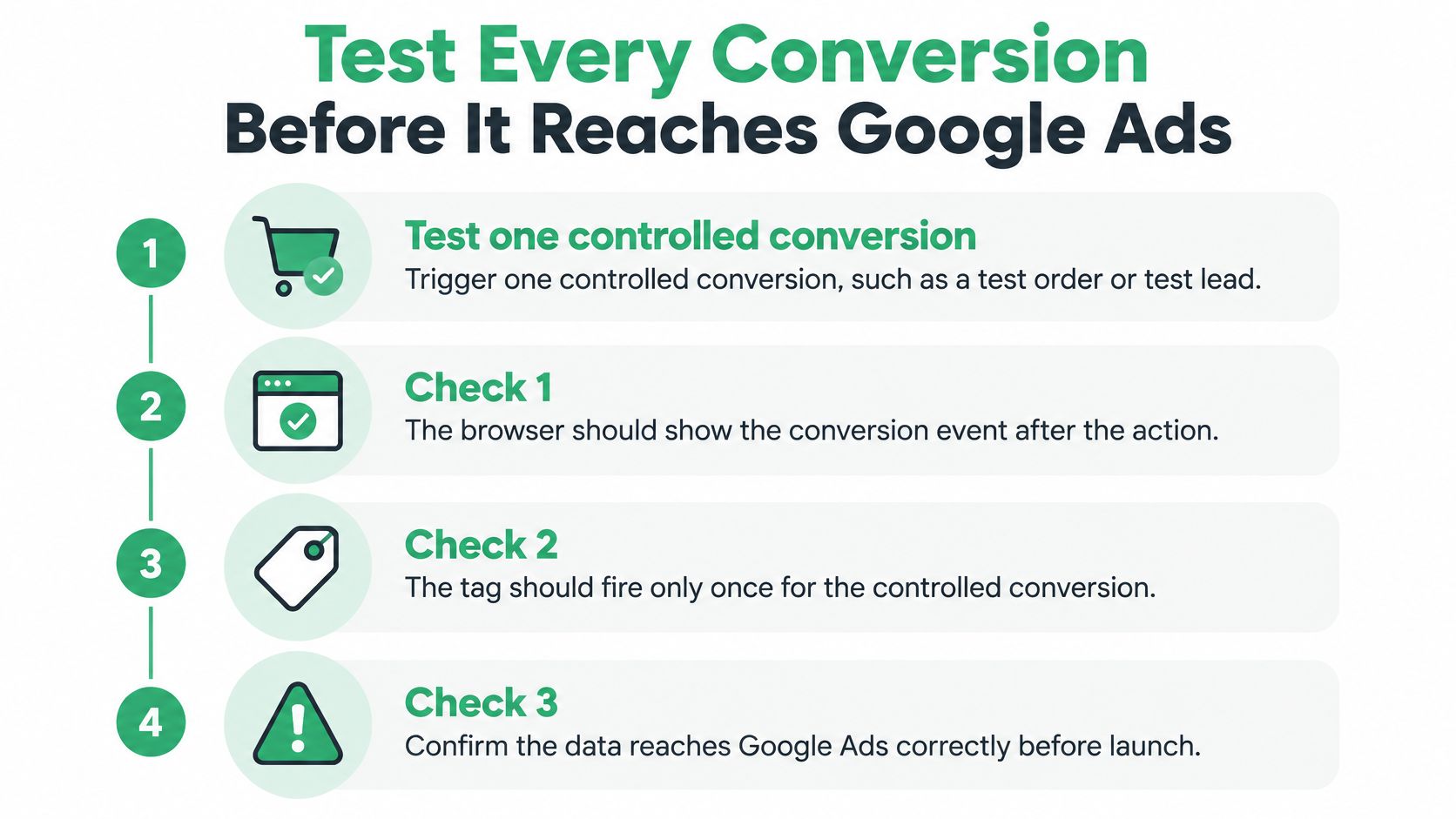
Inspect the network payload. Pass when the controlled action produces exactly the intended conversion-event send. Inspect event payloads rather than all analytics requests, since page views and other events also generate traffic; duplicates suggest overlapping implementations.
Open DebugView with debugging enabled. Pass when the matching event contains the expected name and parameters, with numeric value and valid currency where required. Missing detail suggests incorrect variable mapping or the wrong debug device.
Check Realtime. Pass when the event reaches the intended property. An absent event warrants checking the destination measurement ID, filters, and consent state.
Verify processed classification. Pass when the event appears under Events with its key-event designation. A missing designation suggests a name mismatch or unfinished configuration.
Repeat navigation without completing another action. Refresh, then move back and forward. Pass when no additional conversion event sends; failure points to a page-based trigger without a repeat guard.
Test different environments and consent choices. Use a phone and private window, then test accepted and declined consent. Pass when behavior matches the documented consent implementation, not when every scenario produces identical counts.
Inspect import readiness. Pass when the correct property is linked and the intended event is eligible for the appropriate Ads goal. Missing eligibility suggests linking, permissions, or classification issues.
MD TECH TEAM's explanation of how to measure which campaigns drive sales provides useful context for connecting these technical checks to business outcomes. For an account-level review, use the Google Ads conversion audit workflow.
Every check must pass. An unexplained failure blocks the import release, even if the remaining checks look healthy.
Import to Google Ads and Fix Mismatched Counts
In GA4, open Admin > Product links > Google Ads links and link the intended account. In Google Ads, open the conversion-goal creation workflow, choose the Google Analytics source, and select the relevant GA4 key events.
Import only outcomes that match the campaign's objective. Several events can belong together when they measure the same goal, but a newsletter signup and a sales enquiry shouldn't become interchangeable bidding signals just because both are available.
Diagnose the symptom before editing
| Symptom | Likely cause | Fix |
|---|---|---|
| GA4 shows key events, Google Ads shows none | Missing import or property link | Link the property and import the matching event; check for eligible attributed activity |
| Google Ads appears to count the action twice | GA4 import plus a separate Ads conversion | Choose the bidding source and remove the duplicate from the relevant goal |
| Sudden daily spike in GA4 | Repeat trigger on refresh or retry | Add a completed-outcome guard and prevent resend |
| GA4 is lower than CRM or orders | Consent restrictions, blockers, or missing paths | Compare consent behavior, browsers, and landing pages |
| Values are zero or inconsistent | Text-formatted value or missing currency | Send numeric value and an ISO currency code |
A native Google Ads tag and a GA4 import can coexist for comparison. The problem is allowing both to count the same outcome toward the campaign's bidding goal. Choose a primary source of truth and keep the alternative observational, or retire it once its comparison purpose ends.
Check the attribution model, conversion window, reporting date basis, and included actions before comparing totals. Google Ads reports advertising-attributed outcomes; a GA4 total across all traffic isn't an equivalent denominator.
The Google Ads integration documentation helps identify the account context to inspect. Import passes when the intended conversion action is present, its goal membership is deliberate, and no duplicate source influences bidding. Investigate remaining discrepancies against backend records rather than changing campaign settings to compensate.
Confirm Your Conversion Counts Before Changing Bids
A clean import is necessary, but it isn't the final approval. Your CRM and order system establish which business outcomes happened; GA4 and Google Ads describe observable and attributable activity under their respective settings.
Agree on an acceptable reconciliation tolerance before reviewing the result. Set it around the measurement design and known visibility limits, not around whatever discrepancy happens to appear.
Reconcile against completed outcomes
Align the reporting window. Pull GA4 and backend records for the same dates and timezone. Compare completed orders with completed orders, or accepted leads with accepted leads, rather than mixing submissions with later-qualified opportunities.
Match identifiable records. Use transaction IDs or privacy-safe lead references where available, then segment unmatched outcomes by consent status, browser, and landing page. Don't send names, email addresses, or phone numbers as ordinary GA4 event parameters.
Log the explanation and decision. Record the date, affected path, evidence, cause, owner, and proposed change. Distinguish collection failures from attribution differences before editing a tag.
That log makes the next audit faster because the team can distinguish an accepted limitation from a new fault. Don't apply a blanket percentage correction to make dashboards agree.
Make the bidding decision explicit
- Go on event identity: Each outcome has the intended canonical event and key-event classification.
- Go on counting: The counting unit matches the business definition, with no unexplained repeat sends.
- Go on reconciliation: Backend differences fall within the agreed tolerance and have documented causes.
- Go on advertising: The selected Ads goal contains the intended source, and comparable reporting differences are explained.
- Go on value: Monetary values are numeric, carry the appropriate currency, and reflect the approved valuation model.
A failed condition means pause the measurement release, not necessarily pause every campaign. Keep the untrusted conversion out of bidding until its failure is resolved.
This week, choose your highest-value conversion, run the complete seven-stage checklist, and give the bid strategy access only after it passes.
NotFair's Google Analytics 4 integration includes reports and supported measurement configuration, helping you inspect the reporting and settings involved in conversion setup. Google Ads, Meta, and Search Console connect with your own logins, so your data and history stay with you. Visit NotFair to connect your accounts and start reviewing the conversion you want bidding to trust.