

Roughly four in ten internet users were blocking ads in a GlobalWebIndex study of 109,780 respondents across 42 countries, with annoying or excessive ads the leading motivation across age groups, according to eMarketer's review of ad-blocking research. An annoying Google ad isn't just a minor irritation when it makes people change how they browse.
But stopping the irritation starts with identifying its cause. Google helps select and serve ads, advertisers write the promises and build destination pages, and website publishers decide how advertising fits around their content. The person responsible for the problem isn't always the person whose settings you can change.
Table of Contents
- Why Google Ads Feel Annoying and How Common That Is
- Why Google Ads Feel Irrelevant, Repetitive or Intrusive
- Stop Annoying Google Ads by Where You See Them
- How to Adjust Ad Settings in Your Google Account
- Report an Annoying Ad and Track What Happens
- Fix Your Ads Before Users Report Them
Why Google Ads Feel Annoying and How Common That Is
The ad-blocking findings describe online advertising broadly, not Google ads alone. They still put a familiar frustration into perspective: people don't dislike buying things. They dislike having their attention taken without getting something useful in return.
An ad for something you need can be helpful. The same message after you've already bought the product can feel pointless, while a relevant offer covering the page you're trying to read can feel intrusive.
Recognize the kind of annoyance
Most complaints fall into these categories:
- Wrong topic: The offer doesn't match your search, interests, or current task.
- Unwanted repetition: You keep encountering the same advertiser or message after you've lost interest.
- Obstruction or disappointment: The format interrupts you, the claim misleads you, or the destination makes the promised action difficult.
These categories can overlap. Say you're researching a washing machine, buy one, and then keep seeing appliance promotions. The original targeting may have made sense, but the ads no longer answer your need.
Practical rule: Describe what the ad gets wrong before choosing a control. Irrelevance, repetition, and deception need different responses.
Frequency matters, but relevance and expectations matter too. A message doesn't have to appear repeatedly to waste your time, and a repeated offer isn't necessarily unwelcome if you're still comparing options.
Start by noting where the ad appears and what bothers you about it. That gives you a useful decision: inspect its targeting explanation, change a preference, address the website's presentation, or report a potentially misleading claim. You don't need to understand the entire advertising system to make that distinction.
Why Google Ads Feel Irrelevant, Repetitive or Intrusive
Say you're searching for running shoes in your size, but an ad offers a generic footwear sale. You click and land on a category page where you must start searching again. The advertiser reached someone interested in shoes, but didn't answer the actual request.
Broad search themes can produce vague copy. When users don't recognize an answer to their query, they may skip the ad; when the destination disappoints them, they may leave without completing anything.
Google's Quality Score documentation describes a keyword-level diagnostic on a scale of 1–10, comparing expected click-through rate, ad relevance, and landing-page experience against competing ads shown for the same search during the previous 90 days. It's a diagnostic, not a guarantee that every eligible ad will feel useful to every person.
Identify who can fix the problem
Use this table as a starting point, not proof of what happened in a particular auction.
| Annoyance type | Typical cause | Who controls it | First check |
|---|---|---|---|
| Irrelevant ad | Targeting from search, location, device, or page context | Google's selection system, advertiser targeting, and your ad settings | Why this ad |
| Same ad repeated | Publisher frequency settings or campaign delivery and budget | Publisher or advertiser | Frequency on the site, then report repetition |
| Intrusive format | Pop-up, full-screen, or autoplay placement | Publisher, within the available ad format | Format and placement shown on the page |
| Misleading promise | Headline claim differs from the landing page | Advertiser | Compare the ad claim with the destination |
| Slow or hard landing page | Slow loading or confusing navigation after the click | Advertiser | Load the destination on a phone |
| Scam-like or deceptive | Bait claims or suspicious advertiser identity | Advertiser, with Google review | Advertiser name in the Ads Transparency Center |
Repetition alone doesn't reveal which setting caused it. Campaign delivery and website placement can both contribute, and a user generally can't inspect those controls.
Advertisers can prevent some irrelevant matches with Google Ads negative keywords, which exclude searches they don't intend to serve. Users can't edit an advertiser's keyword list.
Match your response to the defect. Preferences are appropriate for unwanted topics. Deceptive claims warrant a report. A confusing destination requires the advertiser to repair the page, not the user to keep changing account settings.
Stop Annoying Google Ads by Where You See Them
| Where you see the ad | Control to use | What it changes | Limit |
|---|---|---|---|
| Google Search results | Why this ad, then report when appropriate | Explains selection and provides a feedback route | Doesn't remove the advertiser from every query |
| YouTube | Skip; feedback or Not interested where offered; Why this ad | Ends a skippable ad or sends available preference feedback | Skipping isn't a permanent block; options differ |
| Google partner websites | Why this ad and available ad settings | Explains targeting and provides preference controls | Publisher placement and frequency may remain unchanged |
| Signed-in Google services | My Ad Center topics and brands | Adjusts preferences used for personalized advertising | Doesn't guarantee a topic disappears completely |
| Advertiser identity | Ads Transparency Center | Provides advertiser and advertising information | Information only; it doesn't block the ad |
Begin with the specific placement
On Search, open the ad's information menu rather than clicking the advertised destination just to investigate it. Look for the targeting explanation and advertiser details. If you're an advertiser investigating a mismatch, a search-term review can help connect the query someone entered with the ad they received.
On YouTube, skip an unwanted ad when that option appears. Open the ad information or feedback menu for any available preference controls. Don't confuse feedback about a recommended video with feedback about an advertisement, and don't assume skipping teaches the system to permanently exclude that advertiser.
On a partner website, inspect the ad's own menu and the site's settings separately. If the problem is a box covering the article, changing an interest preference may replace its contents without changing the box itself.
Separate preferences from identity checks
Use My Ad Center when you want to review the topics and brands associated with your signed-in experience. Use Ads Transparency Center when your question is who is advertising, rather than what you want to see.
A targeting explanation helps you understand selection. It doesn't give you access to the advertiser's campaign settings.
For a recurring problem, keep track of the service, browser, and account involved. Signed-out browsing doesn't automatically inherit your signed-in account preferences, and another device may use a different account. Repeat the placement check wherever the unwanted ad appears instead of assuming one change applies everywhere.
How to Adjust Ad Settings in Your Google Account
Treat ad settings as preference controls, not an advertising removal switch. According to Google's ad personalization guidance, turning personalization off doesn't remove advertising and can produce less relevant ads; non-personalized selection can still use contextual information such as location or the content you're viewing.
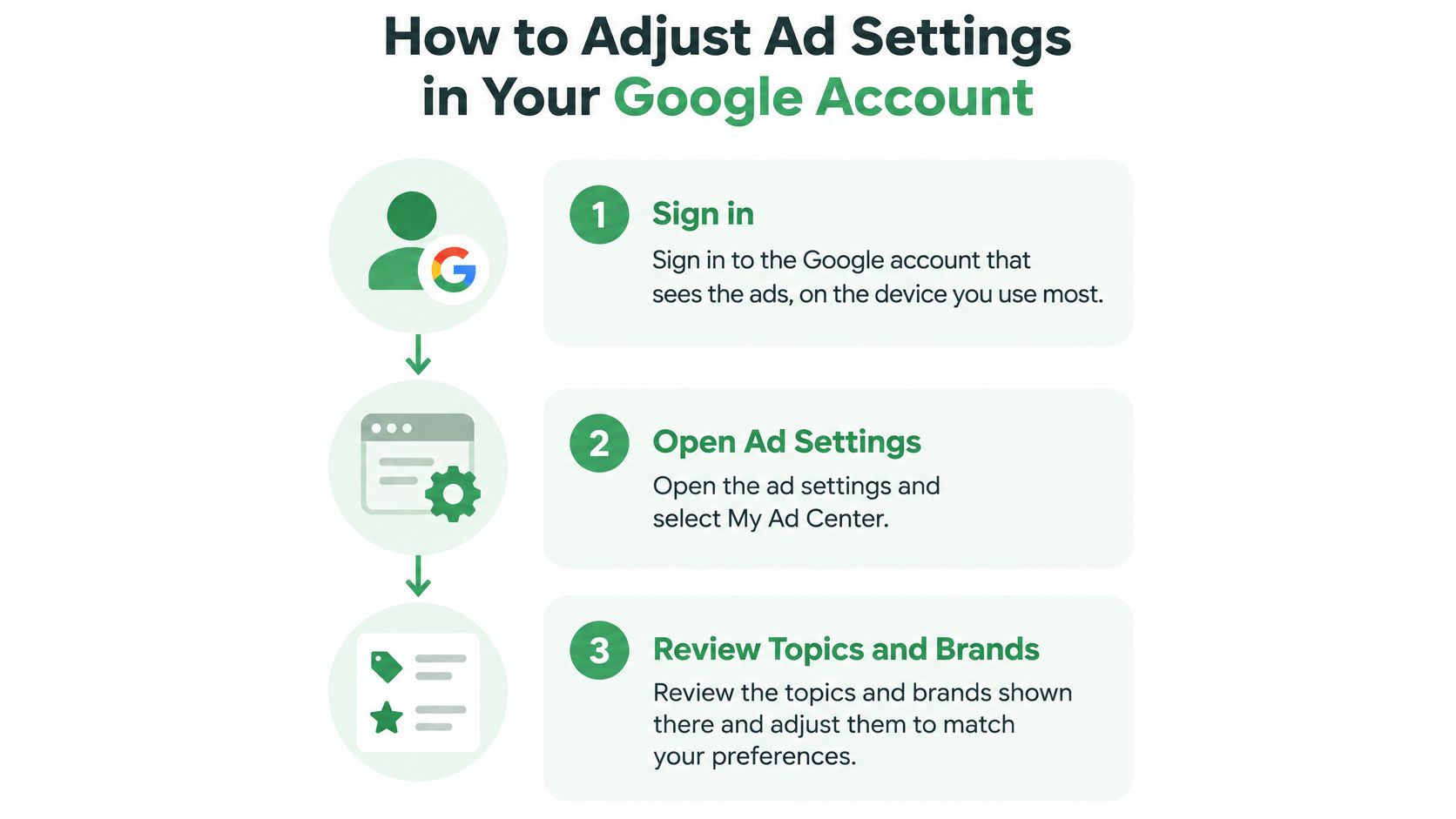
The account workflow starts with signing in and reviewing the preferences associated with that account.
Make deliberate changes
Confirm the account. Sign in to the account that sees the unwanted ads, using your usual device. Check the profile icon so you aren't adjusting a work account while browsing in a personal one.
Open My Ad Center. Access it through your account's ad settings or an available ad information menu. You should reach controls for your advertising preferences, not the advertiser's destination website.
Review topics and brands. Choose to see less of unwanted topics or brands where that control is available. These are preference adjustments, not universal category bans.
Choose your personalization setting. Leave it enabled if you want to refine personalized recommendations, or disable it if reducing personalization is your priority. Expect a change in how ads are selected, not an empty advertising space.
Inspect an unwanted ad afterward. Open Why this ad or the equivalent information option. Look for an explanation that helps distinguish account preferences from the page, location, or other context.
Review the result after ordinary browsing. Note whether the unwanted topic appears across services or only on a particular website. A site-specific problem calls for a site-specific response rather than repeatedly changing the same account preference.
Decide what success means
If your main complaint is randomness, selective topic adjustments may suit you better than switching personalization off entirely. If your priority is limiting behavioral personalization, less relevant advertising may be a trade-off you're comfortable accepting.
Choose the outcome first: Fewer unwanted topics and less personalization aren't always the same goal.
Don't judge a preference change solely by whether the next ad looks different. Watch for a pattern, and distinguish a changed topic from an unchanged intrusive placement. Publisher configurations and the advertising available on a particular service can limit what account-level adjustments accomplish.
Report an Annoying Ad and Track What Happens
Reporting is most useful when you can describe a specific problem: a deceptive promise, suspicious identity, or an offer that appears to violate advertising rules. Political, health, and gambling ads deserve careful scrutiny when their claims seem misleading, but their subject alone doesn't establish a violation.
Google's advertising safety and transparency guidance explains preference controls and advertiser transparency tools. Those tools help separate the advertiser's identity and claims from the signals used to select the ad.
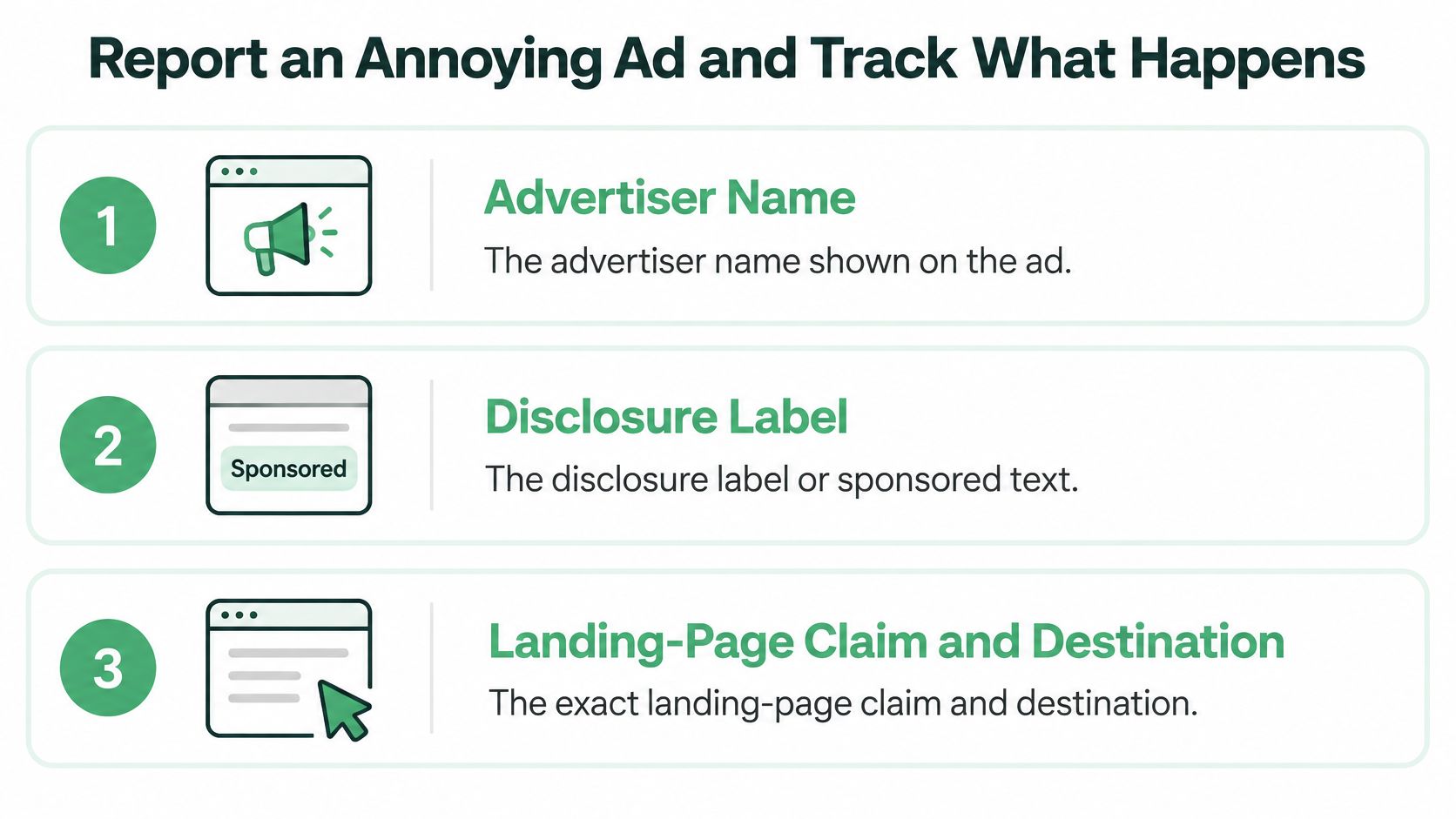
Use this checklist to preserve the basic identifying details.
Collect evidence before submitting
- Advertiser name: Record the name displayed in the ad information.
- Disclosure: Save the sponsored or advertising label.
- Claim and destination: Capture the exact promise and destination domain, without entering personal information on a suspicious page.
- Frequency and location: Note when it appeared and which site or app displayed it.
- Placement: Identify whether it was a search ad, video ad, or partner-page placement.
- Selection explanation: Save the Why this ad details with the date, using a screenshot where possible.
Submit through the ad's feedback option and select the closest accurate reason. Check the advertiser in Ads Transparency Center, but don't treat verification as proof that every claim is trustworthy.
Keep expectations realistic
The public guidance doesn't clearly establish a universal response timetable, explain every review criterion, or guarantee what a single report will suppress. Keep your evidence rather than assuming silence means either approval or enforcement.
If deceptive advertising returns, use any available block option and consider sending the evidence to the relevant consumer protection body. You don't need to wait through repeated exposure to a suspected scam before protecting yourself.
For persistent nuisance ads, consider a site-level setting or browser ad blocker. Blocking can also hide legitimate advertising, and coverage differs by tool, browser, and app, so don't assume it removes every ad from a source.
Fix Your Ads Before Users Report Them
Advertisers should audit the experience they create, not just the clicks they buy. Google's guidance on ad quality explains that Ad Rank considers auction-time quality, including expected click-through rate, ad relevance, and landing-page experience. A higher bid doesn't repair an irrelevant promise or difficult page.
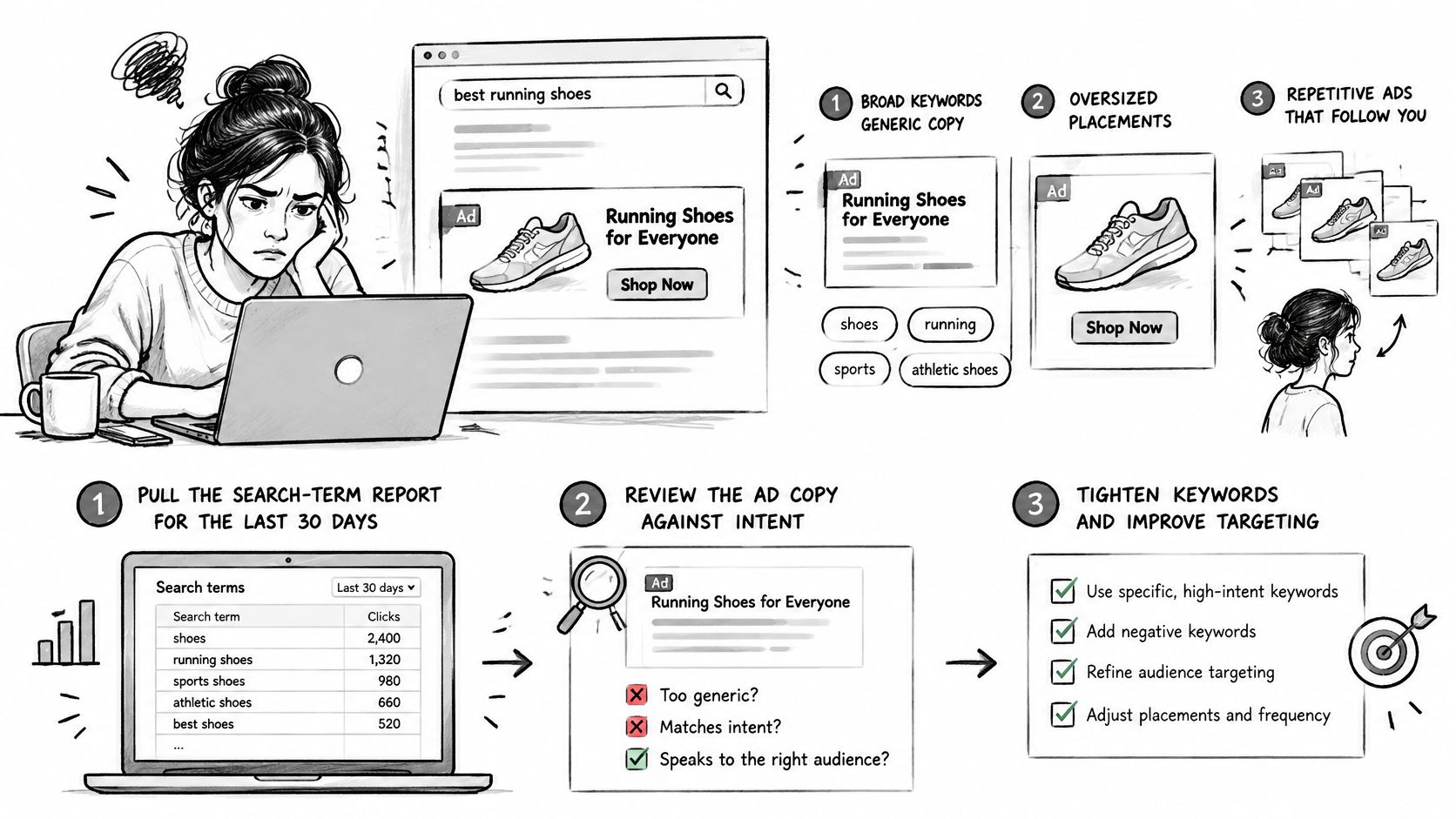
Use this visual as a reminder to move from loose targeting toward a deliberate review process.
Audit the path from query to outcome
Inspect actual search terms. Flag queries with substantial impressions but weak click-through or conversions. Add appropriate negatives and split materially different intentions into separate ad groups.
Compare promises with destinations. Check each headline against its final URL. An emergency dental ad shouldn't lead to a general booking form with no clear emergency option; route it to a page that supports the promised action.
Test on a phone. Follow the full path through navigation, forms, and confirmation. Remove confusing steps and investigate slow loading before sending more traffic.
Review disapprovals. Read the explanation before deciding whether the copy or destination needs repair. We propose a compliant rewrite for each disapproved ad that preserves its original intent.
Choose a concrete action. Pause, rewrite, or redirect each flagged ad. For eligible video and display campaigns, review frequency controls and exclude unsuitable placements.
For deeper work on matching search intent with ad copy, SimpleLab Digital's guide explains how to boost ad relevance and expected CTR.
The accompanying video provides another format for reviewing campaign optimization.
Track conversion rate and post-click engagement alongside click-through rate. Many clicks without useful outcomes warrant investigation, not automatic budget increases. A structured Google Ads audit should leave you with specific corrections and a clear next step for each problem.
For our home services audit, access is read-only, and we make no account changes until you explicitly approve them. Run your own checklist this week with the same discipline: diagnose first, review the proposed correction, then act.
We offer Google Ads audits for ecommerce stores, law firms, healthcare and dental practices, insurance agents, and B2B SaaS to help identify the mismatches that make ads feel irrelevant or frustrating. Visit NotFair to review your advertising and turn unwanted clicks, unclear promises, and difficult landing experiences into a prioritized fix list.