

A google ads preview is a controlled view of how a Google Search ad may appear for a particular search, location, language, device, and audience context. It is not a live search result, not proof that an ad is eligible to serve, and not a substitute for conversion tracking or post-launch analysis. For paid search managers, its value is narrower and more practical: it lets you inspect the message and diagnose certain delivery conditions without generating an unnecessary impression.
What a Google Ads Preview actually shows
Google’s Ad Preview and Diagnosis tool lets an advertiser enter a search term and set context such as location, language, and device. Google then shows a simulated search results page and, where possible, explains why an ad is or is not appearing. The official documentation describes the tool as a way to preview ads and diagnose serving issues without affecting ad performance data: Google’s Ad Preview and Diagnosis documentation.
That distinction matters because marketers often use “preview” to mean three different things:
- Creative preview: what the assembled headline, description, URL, image, or other asset combination may look like.
- Serving preview: whether a particular ad could appear for a chosen query and context.
- Rendered search result: what a real user actually sees at a specific moment in the auction.
These are related, but they answer different questions. A creative preview can tell you whether a headline is truncated or a sitelink label is confusing. A serving preview can reveal that the selected location, language, keyword, bid strategy, or approval status prevents delivery. A real search result includes auction conditions that can change from one search to the next.
Preview is a diagnostic snapshot, not a guarantee
The preview is best treated as a controlled observation. You choose inputs, inspect the result, record the diagnosis, and decide whether the issue requires a campaign change. You are not reserving an impression or forcing Google to show your ad.
Several parts of the result are inherently conditional:
- The query must match the campaign’s targeting and keyword logic.
- The campaign must be eligible to serve at that time.
- The selected location and language must align with targeting settings.
- The account must have an eligible ad, usable assets, and an acceptable destination.
- The ad must compete successfully in the relevant auction context.
Consequently, “I can see the ad in preview” does not mean “the campaign will win enough auctions.” It means that the selected diagnostic setup produced an eligible-looking result at the time of inspection.
What preview cannot tell you
A preview generally cannot establish your actual impression share, click-through rate, conversion rate, search-term mix, or profitability. It also cannot predict which responsive search ad asset combination will dominate over a future reporting period. Those are measurement questions, not rendering questions.
It is also a mistake to use preview as a replacement for a carefully designed search. Searching your own ads repeatedly can create noisy data, expose you to irrelevant personalization, and make it difficult to distinguish a genuine campaign problem from an unusual auction outcome. Use the diagnostic interface for inspection; use account reporting for decisions about scale.
Why preview matters to account performance
A preview catches failures that dashboards often hide. Reporting can show clicks and conversions, but it may not reveal that the visible message is mismatched to the landing page, that a location qualifier is missing, or that the ad is being assembled with an awkward asset combination. These are pre-click quality risks: problems that reduce the chance of a useful click before the reporting system can attribute anything.
For agencies and in-house teams, the tool is especially useful at three points in the operating cycle:
- Before launch: verify that the intended query, market, language, and device produce a plausible result.
- After a change: check whether a new headline, destination, or targeting setting changed the visible experience.
- During diagnosis: separate “the ad is not serving” from “the ad serves but loses visibility or quality in the auction.”
It protects data quality
When an account manager repeatedly searches for their own ads, the resulting activity can be misleading. Even if it does not produce a click, it creates an imperfect way to inspect delivery and can encourage people to optimize around a handful of manually observed results. The preview tool gives the team a safer inspection habit.
That does not make every preview observation statistically meaningful. It simply avoids treating manual searches as a measurement plan. The defensible workflow is:
- Use preview to inspect one controlled scenario.
- Use campaign and search-term reports to measure actual behavior.
- Use landing-page and analytics data to evaluate post-click quality.
- Use change history to connect a delivery change to a setting or asset edit.
It improves client and stakeholder reviews
“The ad is live” is too vague for a client review. A useful review specifies the query context, market, device, campaign, ad group, and date of the check. A screenshot or recorded observation can then support a discussion about message hierarchy rather than turning the meeting into a debate about whether someone happened to see the ad once.
For an agency, this creates a review artifact with a clear limitation: the screenshot documents a scenario, not a guaranteed placement. That wording prevents a common escalation in which a stakeholder treats one missing preview as evidence that the whole account is broken.
How the preview and diagnosis workflow works
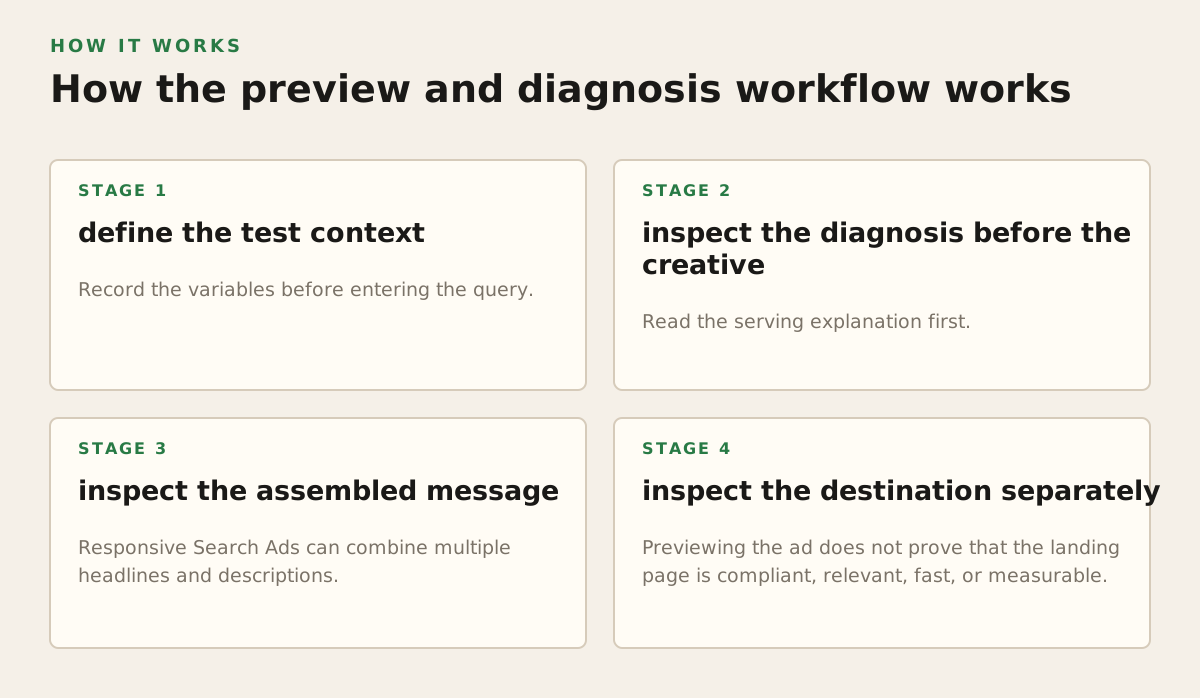
The most reliable process starts with a hypothesis. Do not open the tool simply to ask, “Where is my ad?” Ask a narrower question: “Should this campaign be eligible for this query in this location on this device, and if not, what condition blocks it?”
Step 1: define the test context
Record the variables before entering the query. A useful test record includes:
- Campaign and ad group.
- Exact query or a close representative query.
- Country, region, city, or other location setting.
- Language.
- Device type.
- Date and time of the check.
- Expected keyword, audience, or landing page.
This is not administrative overhead. It prevents a location-targeting problem from being confused with an ad-copy problem. If the campaign targets people physically present in one region but the reviewer tests from another context, the result may be irrelevant to the intended audience.
Step 2: inspect the diagnosis before the creative
Read the serving explanation first. If the tool says the campaign is paused, the ad is disapproved, the budget is exhausted, or the query does not match targeting, there is little value in debating whether the headline looks persuasive. Fix the eligibility condition or document why it is intentional.
Common diagnostic categories include:
| Observation | Likely question | Next check |
|---|---|---|
| No ad appears | Is the campaign or ad eligible? | Status, policy review, budget, schedule, location, language, and keyword matching |
| A competitor or unrelated result appears | Is the query within the intended targeting logic? | Search term intent, match behavior, negatives, and ad group structure |
| The ad appears with unexpected text | Which assets or combinations are being used? | Responsive ad assets, pinning, final URL, and preview variations |
| The ad appears but the destination fails | Is the post-click path usable? | Final URL, redirects, mobile rendering, tracking parameters, and page availability |
The diagnosis is a starting point, not an oracle. A message such as low ad rank does not tell you which single change will solve the problem. It tells you that eligibility alone is insufficient for the ad to win that test context.
Step 3: inspect the assembled message
Responsive Search Ads can combine multiple headlines and descriptions. The important review object is therefore not only the list of approved assets; it is the assembled message hierarchy. Check whether the visible combination communicates:
- What the business offers.
- Who the offer is for.
- Why the user should act now or continue.
- What the user will find after the click.
Look for accidental contradictions. For example, one headline may promise “Same-Day Installation” while the description says “Book a consultation to discuss timing.” Neither statement is necessarily false, but their combination can create an expectation the landing page cannot support.
Also inspect display paths, callouts, sitelinks, and other visible elements. Assets can make the result more useful, but they can also create redundancy. Three separate elements saying “Free Quote” does not give the user three reasons to click.
Step 4: inspect the destination separately
Previewing the ad does not prove that the landing page is compliant, relevant, fast, or measurable. Google’s destination requirements address issues such as functionality, relevance, and unacceptable destination behavior; consult the current Google Ads destination requirements when a preview exposes a URL or landing-page concern.
For a practical review, click-testing should be done in an approved QA process rather than casually from a live result. Check the final URL, mobile layout, form behavior, consent experience, redirects, and analytics parameters. If a tracking template changes the destination, test the resolved URL as well as the visible display URL.
Where Google Ads Preview breaks down
The tool is useful precisely because it narrows a complex system into a reproducible scenario. Its limitation is that the scenario is narrower than the auction. Treating it as a complete representation creates false confidence.
A missing result does not identify one cause
An ad may fail to appear because of status, policy, budget, schedule, targeting, keyword matching, rank, or simple auction variability. A preview can narrow the possibilities, but it cannot replace the account’s eligibility and performance reports.
Use a layered diagnosis:
- Confirm the campaign, ad group, keyword, and ad are enabled and eligible.
- Confirm the query is relevant to the intended targeting and match behavior.
- Confirm the selected location, language, device, and schedule are valid.
- Check policy status and destination diagnostics.
- Review budget, bid strategy, search impression share, and lost-impression-share fields.
- Compare the preview result with actual search-term and conversion data.
This order matters. Teams often rewrite copy when the real issue is a paused campaign or an excluded region. Creative work cannot repair an eligibility setting.
Preview does not reproduce personalization perfectly
Search results can vary with context, and an advertiser cannot assume that a manually selected location perfectly recreates every user’s experience. Device, language, location precision, time, prior activity, and auction competition can all affect what is displayed. The preview should therefore support a test matrix, not a single screenshot treated as universal truth.
An illustrative starting policy for a local service account might test one brand query and one non-brand commercial query across the target city and a nearby excluded city, on mobile and desktop. That is a review design example, not a universal testing requirement. The appropriate matrix depends on how much geographic, device, and language variation the account intentionally serves.
Creative preview can conceal operational problems
An ad can look excellent and still be operationally weak. Preview does not tell you whether the form submits, whether the phone number routes correctly, whether the CRM creates a lead, or whether consent data is passed to the systems that need it. For agencies, this is where handoff checklists matter more than screenshots.
- Confirm the final URL resolves without an unintended redirect chain.
- Confirm the primary call to action is visible on the tested device.
- Confirm lead or purchase events fire once, not multiple times.
- Confirm the recorded conversion maps to the correct campaign and account.
- Confirm sales or customer-success teams can identify the source of the lead.
These checks belong beside the preview, not inside it. A visually correct result is only one part of a functioning acquisition path.
Automation can magnify a weak diagnosis
Automating a preview check sounds attractive, but an automation that treats “not shown” as “rewrite ad” can cause damaging changes. The system needs context, confidence, and an approval boundary. Google’s official API documentation explains the resource-oriented approach used to manage Google Ads data and operations through the API: Google Ads API getting started documentation.
That API access should not be confused with a universal, deterministic replacement for the interface’s preview behavior. An AI or script may collect campaign settings, statuses, assets, and reporting signals, then prepare a diagnosis. It should not claim that one sampled preview proves account-wide delivery.
How practitioners apply previews in real workflows
The strongest use of preview is as a checkpoint inside an operating system. It should answer a decision that someone already needs to make, not become a ritual where every ad receives a screenshot without a consequence.
Launch review for a new campaign
For a new campaign, begin with the intended commercial query and a close variant. Preview each important market and device combination, then compare the visible promise with the landing page. Record exceptions instead of trying to make every preview identical.
A launch review can use the following decision rules:
- Proceed: the ad is eligible, the message matches the query, and the destination supports the promise.
- Hold: the ad or destination has a policy, tracking, or functionality issue.
- Investigate: the result is absent or unexpected, but the cause is not yet isolated.
- Revise: the ad technically serves but creates a clear relevance or expectation problem.
Keep the evidence attached to the campaign change record. This is particularly valuable when multiple people manage the account and a later reviewer needs to understand why a headline was changed or why a campaign was held.
Change validation after an edit
After changing location settings, match behavior, assets, landing pages, or bidding controls, run the same test context again. Comparing like with like makes the preview useful as a before-and-after diagnostic. Changing the query and location at the same time makes the comparison weak.
For example, if a team changes a local campaign from a broad service area to a smaller city, the validation should preserve the query, language, device, and approximate timing while changing only the geographic condition under review. If the result changes, the team has a clearer basis for investigating the location setting rather than attributing the difference to copy.
Agency QA across accounts
Agencies can standardize the record without standardizing the creative. A lightweight review sheet might include:
- Account, campaign, ad group, and ad identifier.
- Query and diagnostic context.
- Expected result.
- Observed result.
- Diagnosis or discrepancy.
- Owner, action, and approval status.
Use the same evidence format for Google Ads and other paid channels, but do not assume the channels expose identical preview behavior. The internal Google Ads MCP can help teams connect AI clients to Google Ads workflows, while Meta Ads MCP is relevant when the same review process needs to include Meta Ads. In both cases, the review policy should distinguish reading data, recommending a change, and executing a change.
AI-assisted diagnosis with approval gates
An AI assistant can make preview work more useful by joining several evidence types:
- Preview context and observed diagnosis.
- Campaign, ad group, keyword, and ad status.
- Search-term and impression-share reporting.
- Change history and recent policy events.
- Landing-page and conversion-tracking checks.
The assistant should produce a bounded explanation such as: “This query did not show the ad in the selected city because the campaign excludes that location; no copy change is recommended.” That is more valuable than “Your ad is underperforming; add more headlines.”
If an AI workflow uses the Model Context Protocol, the protocol’s official introduction describes a standardized way for AI applications to connect with external data and tools: MCP documentation. The important operational point is not the protocol label; it is the permission design around the connected tools.
A sensible approval policy separates actions by risk:
- Read-only: retrieve preview context, statuses, reports, and change history.
- Recommend: propose copy, targeting, budget, or destination changes with evidence.
- Stage: prepare a reversible edit without publishing it.
- Execute: apply an approved change and record the resulting resource state.
Budget edits, broad targeting changes, negative-keyword removals, and landing-page changes deserve stricter approval than a read-only diagnostic. Reversibility is useful, but it does not eliminate the cost of a bad change: an approved edit can still spend money or alter learning conditions before someone notices.
Worked illustrative example
The following numbers are an illustrative example, not a benchmark or recommended account threshold. Suppose a local HVAC advertiser expects its campaign to appear for “emergency furnace repair” in City A on mobile.
- The preview for City A shows the ad and a “Call for Same-Day Help” headline.
- The preview for an excluded nearby city does not show the ad, which is consistent with the targeting policy.
- The landing page headline says “Schedule a quote within three business days,” which conflicts with the emergency promise.
- After the headline is revised to match the actual service level, the team records the change and checks the destination again.
- Actual performance is then evaluated from impressions, calls, qualified leads, and revenue—not from the preview screenshot.
The key finding is not that the ad appeared. It is that the preview exposed a promise-to-destination mismatch before the team interpreted future click data. A different diagnosis would follow if City A failed to show the ad because the campaign schedule excluded the test time. The remedy would be a schedule decision, not a copy rewrite.
A practical recommendation for using Google Ads Preview in 2026
Make preview a gated diagnostic step, not a vanity check. Require a test context, a stated hypothesis, a recorded diagnosis, and a next action. Then verify the conclusion against account-level reporting and the destination experience.
For most teams, the operating sequence should be:
- Define the query and user context that matter commercially.
- Run the preview without manually generating live searches.
- Resolve eligibility and policy issues before revising creative.
- Review the assembled message and destination together.
- Record the observation with its limitations.
- Use real performance data to decide whether to scale, restructure, or stop.
Do not promise clients that a preview guarantees placement. Do not let an AI agent infer account-wide failure from one missing result. Do use the tool to reduce avoidable launch errors, make QA repeatable, and give every proposed change a concrete reason.
For teams that want to connect this review process to AI clients, NotFair provides hosted MCP connections for Google Ads and related marketing systems, with approval-gated workflows intended to diagnose issues and apply reversible changes. NotFair
Authored with NotFair SEO